Page
A page turns the numbers piling up in your workbooks and tables into charts, tables, and text that anyone can understand at a glance — a report or dashboard. Build a report, and once it’s done, export it to PDF and share it.
What Is a Page?
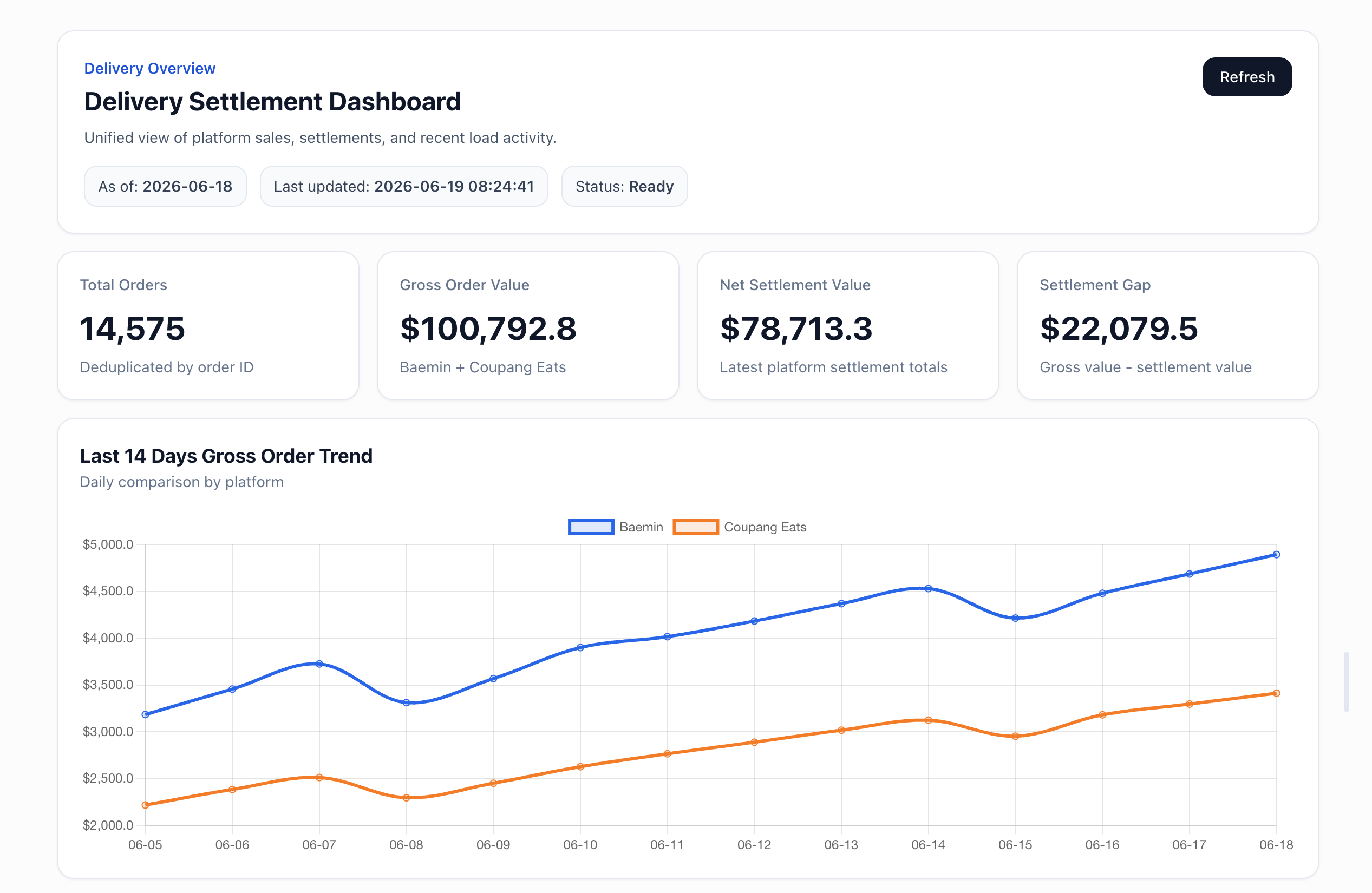
A list of numbers on its own doesn’t say much. The same sales figures, drawn as a bar chart, instantly show which region is outselling the rest; laid out as a table, they’re easy to compare line by line. A page pulls in data from your workbooks and tables and lets you arrange charts, tables, and text freely in a grid — making it far easier to give raw numbers meaning.
- A workbook is a workspace for editing data cell by cell.
- A table is a dataset for storing and querying data.
- A page is a report that visualizes that data so anyone can understand it.
Think of it as the presentation and sharing surface for your data, not a place to change the underlying data. From a table in your workspace, pull it into a workbook if you want to click into cells by hand, or into a page if you want it laid out as a polished, shareable report.
Building Pages Through the Agent
You create and refine pages by telling the agent what you want in plain language.
- Lay out the page: Ask “Put a sales trend chart and a table by region on one screen” and the agent arranges sections in the grid.
- Visualize data: Pull data from a table or workbook and render it as charts and tables.
- Edit and refine: Adjust section by section with requests like “Change the chart from bars to a line” or “Add a summary sentence at the top.”
Pages redraw when their data changes, so they work well as a recurring report format you reuse over time.
Finish the Report, Export to PDF
Build a finished document — a sales report, a weekly update — as a page, then click the Download PDF button at the top to save it as a PDF file. Handy for sharing or archiving reports. Downloading the PDF is for subscribers.
Preventing Accidental Edits with Locking
Once a page is finished, lock it to prevent accidental changes. Click the lock button at the top of the page to lock it — a locked page cannot be modified, not even by the agent. Unlock it first to make changes.
Lock dashboards you share regularly and finalized reports to keep them safe.