Organizations
An organization is the outermost unit that ties workspaces and billing together. Invite members, group them to grant access, create workspaces, and manage your subscription and credits in one place.
How organizations and workspaces relate
An organization holds several workspaces, and each workspace is an isolated unit of work. Workbooks, tables, and pages live inside a workspace, while the subscription and credits are managed at the organization level.
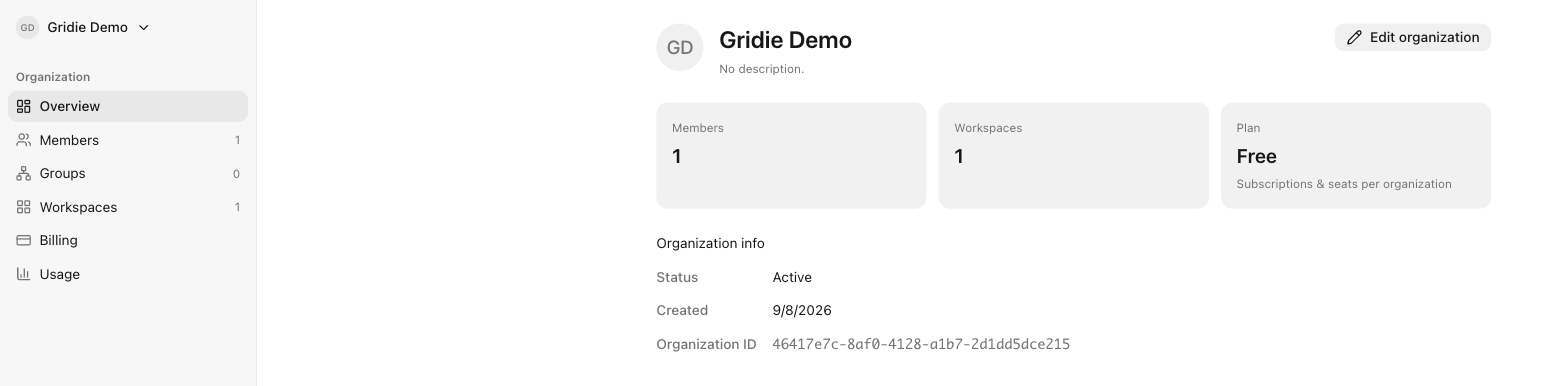
Go to user menu → Manage organization to open the organization screen. It’s split into Overview, Members, Groups, Workspaces, Billing, and Usage.
Roles
Every organization member holds one of three roles.
| Role | What they can do |
|---|---|
| Owner | Manages everything in the organization, including billing, ownership transfer, and deleting the organization. |
| Admin | Invites and removes members, creates and deletes workspaces, and manages integrations and seats. Cannot touch payment methods or ownership. |
| Member | Belongs to the organization and works only in the workspaces they’ve been given. Cannot manage organization settings. |
Inviting members
Invite by email from the Members tab, choosing a role as you go. Once the invitation is accepted the person becomes an organization member, and you can then add them to individual workspaces.
You can also remove a member from the organization, or leave an organization yourself.
Being an organization member doesn’t grant access to every workspace. Members are added to each workspace separately.
Granting access with groups
Adding people one at a time gets tedious as the organization grows. The Groups tab lets you bundle members and grant workspace access to the whole group.
- A group has managers and members.
- Groups can contain other groups, forming a hierarchy.
Managing workspaces
The Workspaces tab lists the workspaces in this organization and lets you create new ones. Open a workspace to see its members and roles, and use Add member to bring organization members in.
Only that workspace’s admins can manage its members.
Usage and billing
The Usage tab shows how the organization shares a single credit pool.
- Organization credit usage and remaining credits for the current billing cycle
- Usage broken down by workspace
The Billing tab is visible only to organization admins. Subscriptions and seats are managed per organization.
For plans and credits in detail, see Subscription & Credits.
Related docs
- Workspaces — creating and switching workspaces
- Permissions — folder-level access
- Subscription & Credits