Agent Personalization
You can adjust how the agent behaves to suit your preferences. Register rules you repeat often, manage memories the agent has learned, and toggle conversation assistance features on or off.
Agent settings are accessible from User Menu → Settings → Agent tab.
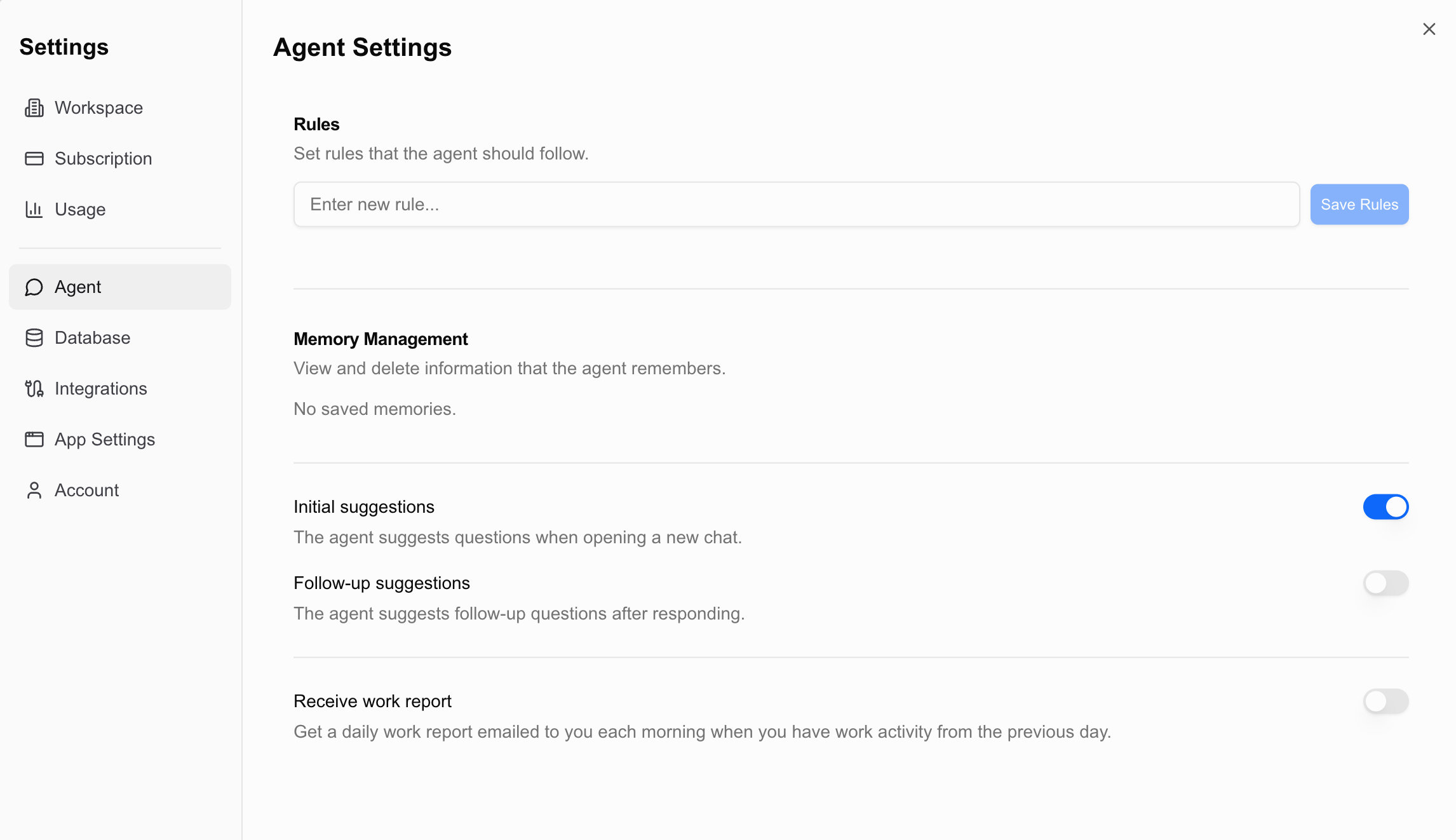
Custom Rules
Register your own rules that the agent should always follow. Registered rules are automatically applied to all conversations.

Adding Rules
Type a rule in the input field and press Enter or click the save button.
Rule examples:
Always display numbers with thousands separators.When creating tables, use bold headers with a light blue background.Respond in English only.Always ask me for confirmation before deleting data.Deleting Rules
Click the X button on the right side of each rule to delete it. Deleted rules will no longer be applied starting from the next conversation.
Custom rules apply globally to agent conversations across all workbooks. For rules you want applied to a specific workbook only, write them in that workbook’s AI Note.
AI Memory
The agent automatically remembers information during conversations that may be useful later. For example, if you tell it “our team’s sales figures are VAT-inclusive,” the agent remembers this and automatically references it in future conversations.

Managing Memory
- View list: See all saved memory items.
- Delete: Remove unnecessary or incorrect memories with the X button.
Delete incorrect memories immediately. Memory settings apply across your entire account, so it’s recommended not to store sensitive information.
Question Suggestions
This feature has the agent suggest next questions or tasks during the conversation.
| Setting | Description |
|---|---|
| First question suggestions | The agent suggests starter questions when you begin a chat |
| Follow-up question suggestions | The agent suggests related follow-up questions after responding |
Both settings can be toggled on or off. Turning suggestions off gives you a more streamlined interface.
Work Reports
When you have work activity in Gridie from the previous day, you can get a summary report by email the next morning. Gridie sends it, so no integration is needed.
The toggle lives under User menu → Settings → Personal → Account in Email preferences, not in agent settings. Turn Work report on or off there. The same place also manages Gridie news.
The unsubscribe link at the bottom of an email only stops that kind of email. Turning off work reports still leaves billing and security emails coming.