Workbook
Gridie’s workbook is the basic unit for storing data by project or work unit, equivalent to a single spreadsheet file. Follow the guide below to create new workbooks, organize them into folders, and utilize file upload and download.
Creating a Workbook
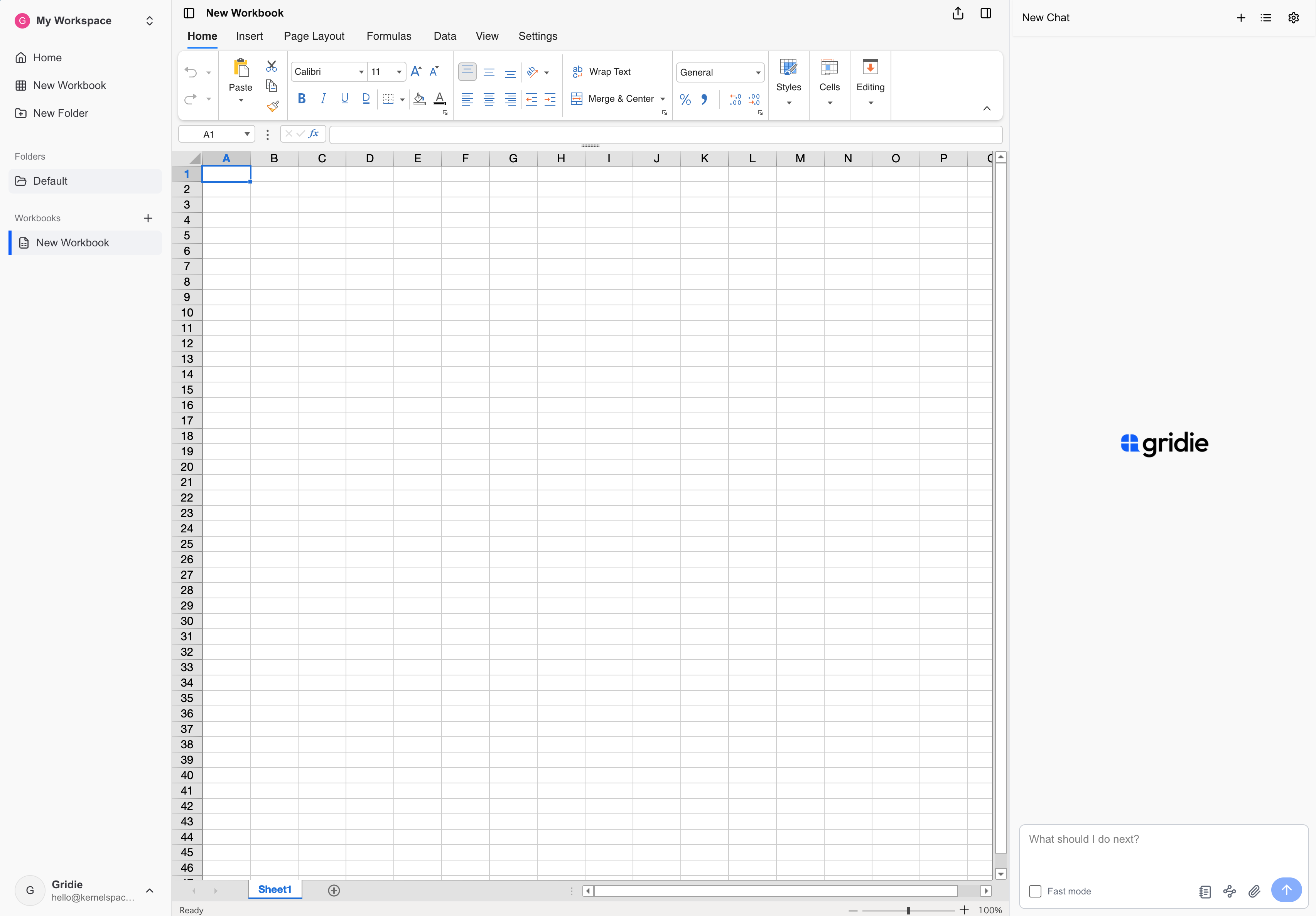
Click New Workbook to open a blank sheet. You can rename it by clicking the title at the top. Access follows the permissions of the folder that contains the workbook.
The chat floating below the sheet lets you hand work to the agent right away. See Talk to the Agent for how to expand and collapse it.
Uploading Files
You can upload Excel and CSV files as workbooks, or attach images and PDFs for the agent to analyze. Drag a file from your computer onto the workbook list or a folder to import it there. If a file with the same name exists, Gridie adds copy to the new filename.
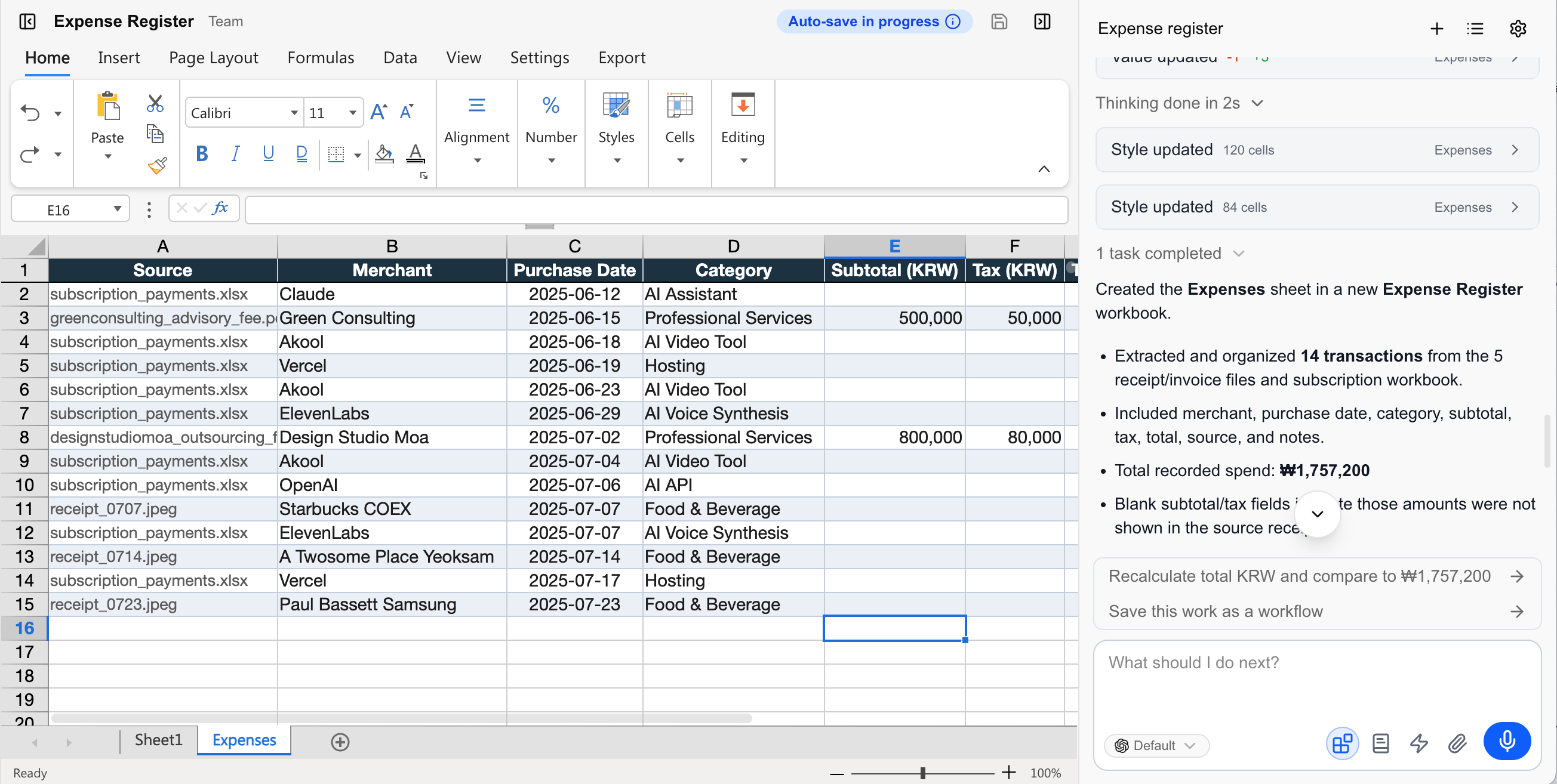
For example, attach a mix of receipt photos and PDFs and ask:
Review the attached receipt images and PDF files. Extract the merchant, purchase date, category, subtotal, tax, and total, then organize everything in a new sheet. Flag possible duplicates and mark any fields that are difficult to read.
Example result
Copying · Deleting Workbooks
Copying a workbook creates an identical copy in the current folder. Deleting it also removes its AI Notes. If you only need to undo the agent’s changes, restore an earlier point from version history instead.
Downloading Workbooks
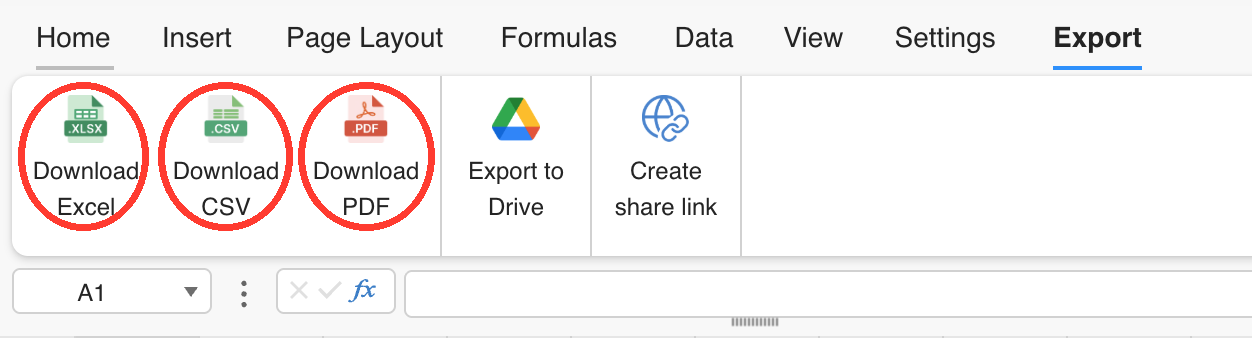
Click the export button
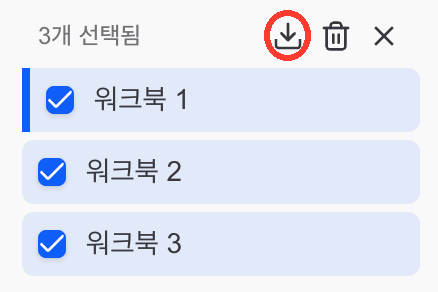
at the top right of the workbook to download it as an Excel (xlsx), CSV, or PDF file. To download in bulk, select multiple workbooks from the left list and export them together as Excel files.
Downloading files out of Gridie is for subscribers.
Organizing with Folders
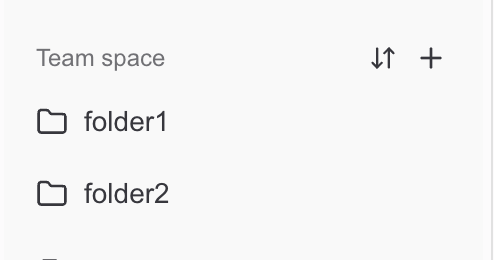
Top-level folders
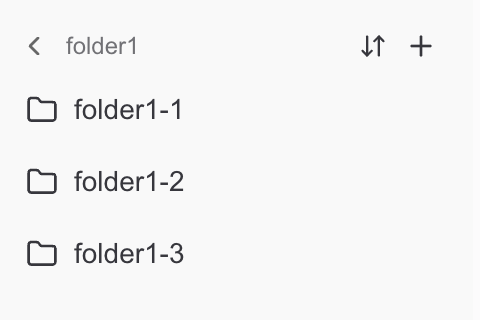
Nested folders
Create folders for different areas of work, then drag workbooks into them to stay organized. Dropping a computer file onto the sidebar or a folder uploads it directly to that location. Folder-level permissions control who can access the work inside.
Deleting a folder also deletes every workbook inside it. Check for files you still need before continuing.