Permissions
Gridie controls access across four layers — Organization, Workspace, Folder, and Group. Each layer narrows the one above it, so you can give every person exactly the access they need.
The Four Layers
- Organization: The top-level account that holds billing, members, and workspaces.
- Workspace: A space for a team’s work, with its own members and settings.
- Folder: Where workbooks, tables, and pages live inside a workspace. Access is set per folder.
- Group: A reusable set of people you can grant workspace or folder access to all at once.
Organization Roles
Everyone in the organization has one of the following roles.
| Role | Can do |
|---|---|
| Owner | Manage everything in the organization, including billing, transferring ownership, and deleting the organization |
| Admin | Invite and remove members, create or delete workspaces, and manage integrations and seats — but cannot change the payment method or ownership |
| Member | Belong to the organization and work only in the workspaces they’re given; cannot manage organization settings |
Workspace Roles
Within each workspace, members hold one of the following roles.
| Role | Can do |
|---|---|
| Owner | Manage everything in the workspace, including transferring ownership and deleting it |
| Admin | Rename the workspace, manage members and groups, and configure the database and other workspace settings |
| Member | Belong to the workspace and edit shared folders; restricted folders require being granted access |
A workspace Admin manages the workspace itself. Access to the data inside folders is decided separately by folder permissions.
Folder Permissions
Folders hold your workbooks, tables, and pages. You can grant a person or group one of three levels per folder.
| Permission | Can do |
|---|---|
| Read | View the contents of the folder |
| Write | Create, edit, and delete contents — but cannot move or delete the folder itself, or change its sharing |
| Admin | Everything Write can do, plus moving and deleting the folder, and granting or revoking access for other people and groups |
Ownership and Restricting Access
The person who creates a folder can manage it. An unrestricted folder is editable by all workspace members, and only its creator (or the workspace owner) can start restricting it — restricting means adding the first access grant. Once a folder is restricted, only the people and groups you grant can get in.
Setting Folder Permissions
- Right-click the folder you want to set permissions for, or click the
...menu next to the folder. - Select Manage Permissions.
- If the folder isn’t restricted yet, click Manage permissions. You become an admin of this folder.
- Click Add and select a person or group. They are added with Write access right away, and you can change it to Read / Write / Admin in the list.
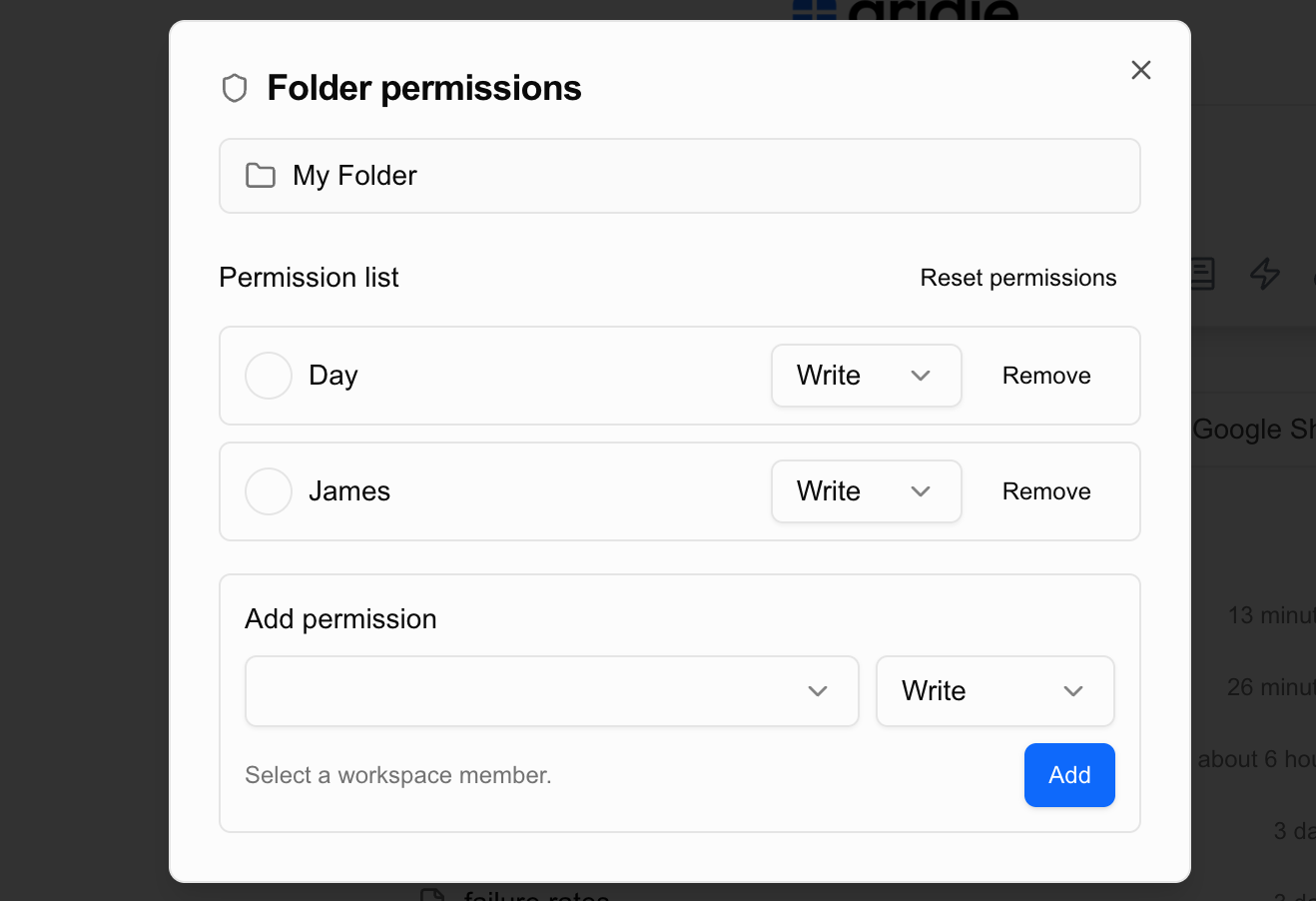
Permission Inheritance for Subfolders
If a folder has subfolders, the subfolders automatically inherit the parent folder’s permissions. When you open Manage Permissions on an inherited folder, use the Edit permissions button labeled with the parent folder’s name to change the parent’s permissions, or Set separate permissions for this folder to give this folder its own.
Deleting Folders
Only members with Admin permission on a folder can move or delete it.
Deleting a folder moves the folder and everything in it, including workbooks, tables, and pages, to the trash. Select Undo in the notification right after deleting to bring it back, or restore it from Settings → Trash within 30 days. After 30 days it is deleted permanently.
Groups
A group bundles people together so you can grant access once instead of person by person. Members of a group hold one of two roles.
| Role | Can do |
|---|---|
| Manager | Add and remove group members |
| Member | Belong to the group and receive the workspace and folder permissions granted to it |
A group can be granted access to a workspace or folder, and the group’s access level — Admin or Member for a workspace, or Read / Write / Admin for a folder — applies to every member. Groups can also be nested: a group can contain sub-groups, and membership rolls up so sub-group members inherit the parent group’s grants.
Related
- Workspace — how members and roles work inside a workspace.
Note on Simultaneous Editing
Gridie does not currently support simultaneous editing. If multiple people access the same workbook, only one person can edit at a time.
Real-time simultaneous editing is planned for a future update.