Example: Build and Share a Team Dashboard Page
An example of turning scattered data into a single page dashboard that your team opens in the same place every week. Suited to recurring deliverables like weekly performance updates and project status reports.
The numbers already live in workbooks and tables, but the team never opens them. You end up explaining which sheet and which range to look at, and when it’s time to report you screenshot it all over again.
A page is a document-style dashboard that arranges charts, tables, and summary text into sections. Build it once and the team only has to open one thing, and it redraws when the data changes.
Before
Open the workbook → find the sheet → screenshot → paste into a report doc
After
The team opens one page
Step 1: Decide What Goes On It
A page displays data rather than producing it. Start by deciding which numbers come from where.
| Source | What goes on the page |
|---|---|
Weekly Results workbook sheet | Sales and target attainment by team |
payments table | Monthly payment trend |
Pipeline workbook sheet | Count of open deals |
One page can mix workbook and table data.
Step 2: Build the Page
Ask for the Dashboard
Say what goes where and the agent lays out the sections.
"Create a weekly team dashboard page.
Put total sales, target attainment, and new deal count as metric cards at the top,
then a team sales bar chart and a weekly trend line chart side by side below."
Refine It
Ask for changes section by section.
"Change the chart from bars to lines, and add a three-line summary of this week at the top."Review
Check the page itself for missing metrics or items grouped the wrong way.

Step 3: Export It as a Deliverable
The Download PDF button at the top of the page saves the current view as a PDF. Use it to attach the report to an email or hand it out in a meeting. This one is for subscribers.
Once the format is settled, lock the page to prevent accidental edits. A locked page can’t be changed by the agent either.
If you plan to refresh the page automatically as in the next step, leave it unlocked. Locking is for a final version that won’t change again.
Step 4: Open It Up to the Team
Put the page in a team folder and grant your teammates access to that folder. Anyone with access opens the page straight from the sidebar.
Organize the Folder
Gather the dashboard page and the workbooks and tables behind it into one folder.
Grant Access
Add teammates or a group to the folder and set their permission. Subfolders inherit permissions from the folder above.
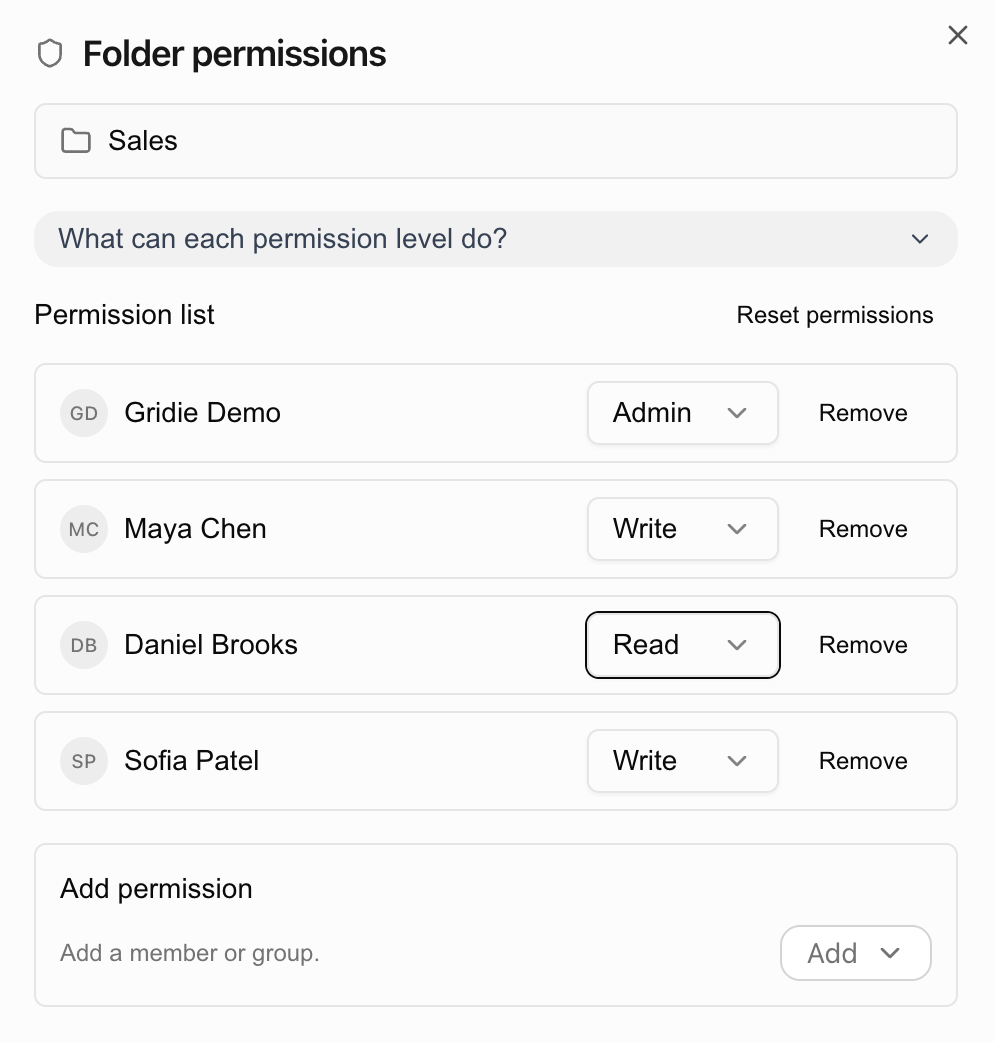
Tip: For a larger team, create a group and attach it to the folder instead of adding people one at a time. As people join and leave you only edit the group.
Step 5: Refresh It Every Week on Its Own
A dashboard is only useful while it’s current. Save the refresh as a workflow and put it on a schedule.
"Create a workflow that refreshes the weekly dashboard page.
Reread this week's data and redraw the metric cards and charts.
Name it 'Weekly Dashboard Refresh'."
"Schedule the 'Weekly Dashboard Refresh' workflow to run every Monday at 8 AM."When the team opens the page on Monday morning, this week’s numbers are already in it.
→ Create a workflow · Schedule automated runs
Hand the Same Setup to Another Team
Once the dashboard settles, turn the whole folder into a kit so another team or a new quarter can start from an exact copy. Workbooks, tables, pages, and workflows come across along with the folder structure, so the recipient only has to fill in data.
Create it from Create kit in the folder menu by entering a name and description.