Subscription & Credits
Gridie subscriptions, seats, and credits are all managed at the organization level. An organization has one subscription and one credit pool, shared by every workspace in it. Plan changes and billing are handled in the Organization screen → Billing tab.

Workspace settings also has a Subscription tab, but it is read-only. Billing goes to the organization, not the workspace, so plan changes and additional usage settings can only be made on the organization billing screen.
Checking Your Current Plan
View your current subscription plan name and status at the top of the organization billing screen.
| Item | Description |
|---|---|
| Plan name | Your current subscription (Pro / Expert / Team / Enterprise). Without a subscription, you’re on free usage. |
| Status | Active / Cancellation pending, and more |
| Subscription period | Start date ~ end date |
| Number of seats | Seats the organization holds |
Each organization has one active subscription, and the same plan is shown from any workspace in the organization.
Click the Manage subscription button to go to the Stripe customer portal where you can change payment methods, cancel subscriptions, and more.
Plans
| Plan | Category | Credits |
|---|---|---|
| Free | Standard | 30 credits per month |
| Pro | Standard | 500 credits per seat per month |
| Expert | Standard | 2,000 credits per seat per month |
| Team | Enterprise (minimum 2 seats) | 500 credits per seat per month |
| Enterprise | Enterprise (contact us) | Custom |
Seats
Seats determine how many members can join the organization.
- Seats = organization members. A person who belongs to several workspaces in the same organization still uses only one seat.
- A seat is consumed when an organization invitation is sent. Pending invitations that haven’t been accepted yet also reserve a seat.
- Adding an organization member to a workspace does not consume an extra seat.
- If there aren’t enough seats, the invitation fails; add seats to your plan and invite again. Only the organization owner can add or remove seats, and changes are prorated.
Credits
Credits are consumed when using agent features. They’re used for AI computation tasks like sending chat messages, running workflows, running schedules, and executing code.
The whole organization draws from one credit pool, and you can see how much each workspace used on the organization usage screen.

Plan Credits
The base credits provided monthly based on your subscription plan and seat count. Check the usage bar to see remaining credits for this period.
- Bonus or on-the-house credits are shown separately when available.
- When plan credits run out, additional usage (on-demand) is needed for further AI tasks.
Additional Usage (On-Demand Credits)
To keep working after your plan credits are exhausted, enable Additional Usage. This is a pay-as-you-go model where you’re charged on your next billing date only for what you use beyond your limit. You can set a monthly spending limit.
Additional usage must be enabled separately on the organization billing screen, and only the organization owner can configure it. It is not available on yearly billing plans. Without enabling it, AI features are restricted when plan credits run out.
Per-Member Credit Limits
To keep any single member from consuming too many credits, you can set per-member credit limits in the Usage tab of workspace settings.
- Leaving the limit empty means unlimited usage.
- If a person belongs to several workspaces in the organization, the strictest of their limits applies.
- Only workspace admins can configure limits.
Workflow Limits
The number of workflows you can create is limited by your subscription plan, counted across all workspaces in the organization. You can see the current count and each plan’s limit in the settings screen, and upgrade your plan if needed.
Reviewing Usage
The Organization screen → Usage tab lets you explore the organization’s credit usage along four axes:
- By day: usage trend over time
- By workspace: how much each workspace used
- By member: who used how much
- By feature: which features (chat, workflows, schedules, …) consumed credits
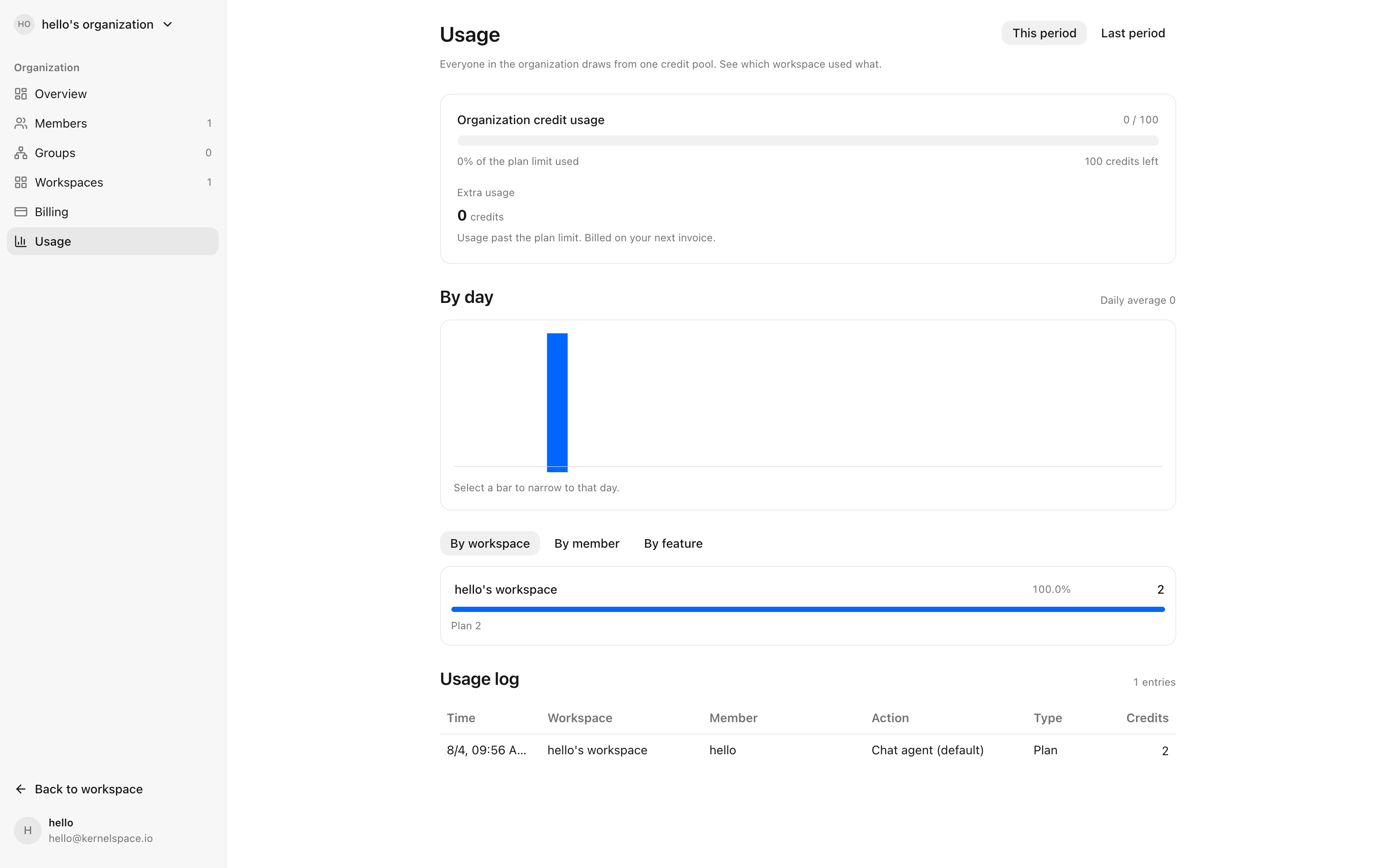
The usage log table at the bottom shows when and what tasks consumed credits.
| Column | Description |
|---|---|
| Date | When the credit was consumed |
| Description | The task that consumed the credit |
| Type | Plan / On-Demand / Free / Service |
| Credit | Amount of credits consumed |
| Workspace · Member | Where and by whom the usage occurred |
The Usage tab in workspace settings shows the same screen scoped to that workspace. Detailed usage logs are visible to organization admins and above.
Billing Permissions
| Action | Required role |
|---|---|
| Start billing, change plans, add/remove seats, configure additional usage | Organization owner |
| View the billing screen, preview changes | Organization admin or above |
Billing information is not shown to members who aren’t organization admins.
Upgrading Your Plan
If you’re on free usage, select a paid plan on the organization billing screen to upgrade.

Click Free trial or Upgrade now to go to the Stripe payment screen.
For annual plans or Enterprise plan inquiries, contact us at hello@kernelspace.io.
Resuming Your Subscription
If you’ve cancelled your subscription and want to resume, click the Resume subscription button. You can restore your previous plan without re-entering payment information.