 Custom Connectors (MCP)
Custom Connectors (MCP)
Gridie supports the Model Context Protocol (MCP) standard. Add an external service that provides an MCP server (like Notion or Sentry) or your own MCP server, and the agent can call that server’s tools to fetch data or perform tasks.
You manage custom connectors under User Menu → Settings → Integrations → Custom tab.
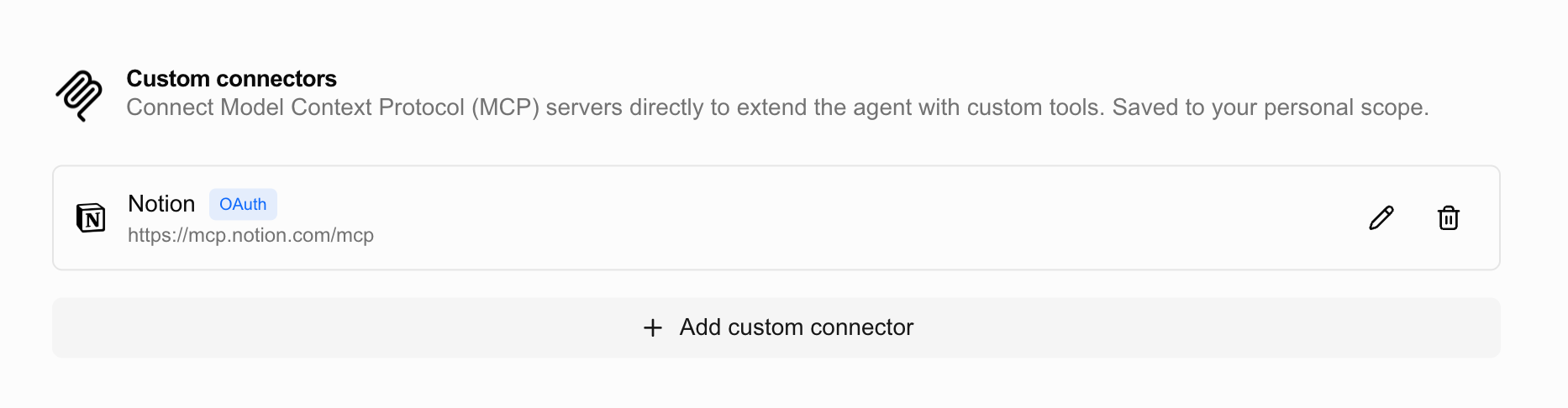
Adding a Connector
Open Settings
Go to User menu → Settings → Integrations and click Add custom integration at the top right.
Enter the Server URL
Enter the URL of the MCP server. Examples:
- Notion:
https://mcp.notion.com/mcp - Sentry:
https://mcp.sentry.dev/mcp - A server you host yourself:
https://mcp.example.com/mcp
The name is filled in automatically from the URL, but you can edit it.
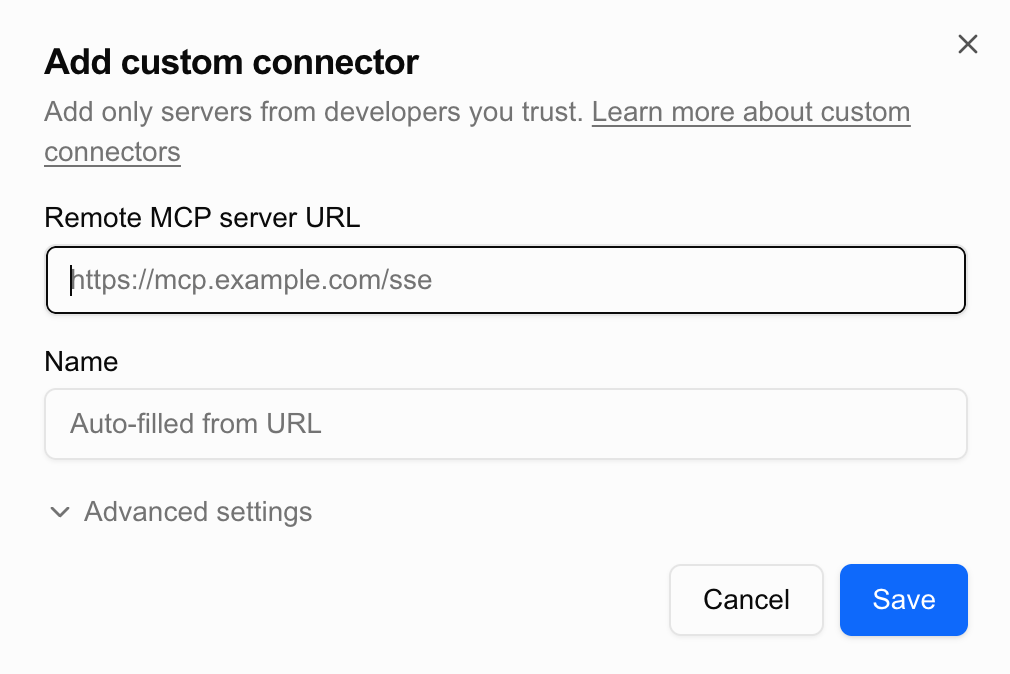
Handle Authentication
For servers that require OAuth (Notion, Sentry, etc.), pressing Save automatically opens an authentication popup. Once you sign in to the external service and grant permission, the connection completes automatically.
For servers that require an API token (such as GitHub Copilot MCP), expand Advanced settings and enter the access token. It is sent in the Authorization: Bearer <token> header.
For servers that need no authentication, just enter the URL and save.
Some OAuth servers (e.g., GitHub Copilot MCP) require pre-registering a client, so they can’t be connected through Gridie’s automatic OAuth flow. In that case a guidance message appears when you save, and you can paste an access token issued directly by that service into Advanced settings.
Before saving, Gridie verifies that it can actually connect to the server. Invalid URLs or tokens won’t be saved, so feel free to try various servers.
Using Tools in Chat
There is nothing to switch on after adding it. Describe what you want and the agent turns on the connectors it needs. Because more tools mean more token cost, it activates only what the task calls for rather than everything at once. Name a specific connector if you want that one used.
Activate the Notion connector and search for yesterday's meeting notes.The tools of an activated connector appear in the chat UI with the server favicon and a human-readable name (e.g., Search Pages).
Security — Read This Before Adding
Custom connectors are powerful, so add them carefully. The servers you add gain the following access.
They Connect to Your Personal Account
OAuth tokens and API keys are stored tied to your account. For example, if you add a Notion connector, that server can access every Notion workspace/page you can reach, with your permissions. Other users in the same Gridie workspace can’t use your token, but remember that you, the person who added it, have delegated sufficient permission.
The Agent Calls Them Automatically
The tools of an activated connector are called autonomously by the agent. It doesn’t ask for confirmation on every call, and the responses the tools return feed directly into the agent’s next decisions.
Data May Leave Gridie
When the agent calls a tool, the arguments needed for the call (e.g., search queries, workbook cell values) are sent to that external server. In workbooks that handle sensitive data, choose carefully which connectors to activate.
What Gridie Blocks Automatically
- Private network/metadata address blocking: Internal addresses like
localhost,127.0.0.1,192.168.x,10.x, and169.254.169.254(AWS metadata) cannot be registered. - Encrypted token storage: All tokens are encrypted with AES-256-GCM and stored in the database, decrypted in memory only at call time.
- HTTPS recommended:
http://is technically allowed, but because it transmits in plaintext, always usehttps://in production.
Never add a server from an unknown or untrusted source. A malicious server can use the permissions you delegated, and could embed prompt-injection text in tool descriptions to mislead the agent’s judgment.
Editing and Deleting Connectors
On the right of each list item, use the pencil icon to edit and the trash icon to delete. Deleting also removes the stored token, and to use it again you must go through the authentication process from the start.
Handling Token Expiration
When an OAuth token expires, Gridie tries to refresh it once automatically using the stored refresh token. If even the refresh fails, an error appears in chat, and you can simply add the connector again.