Connectors & Credentials
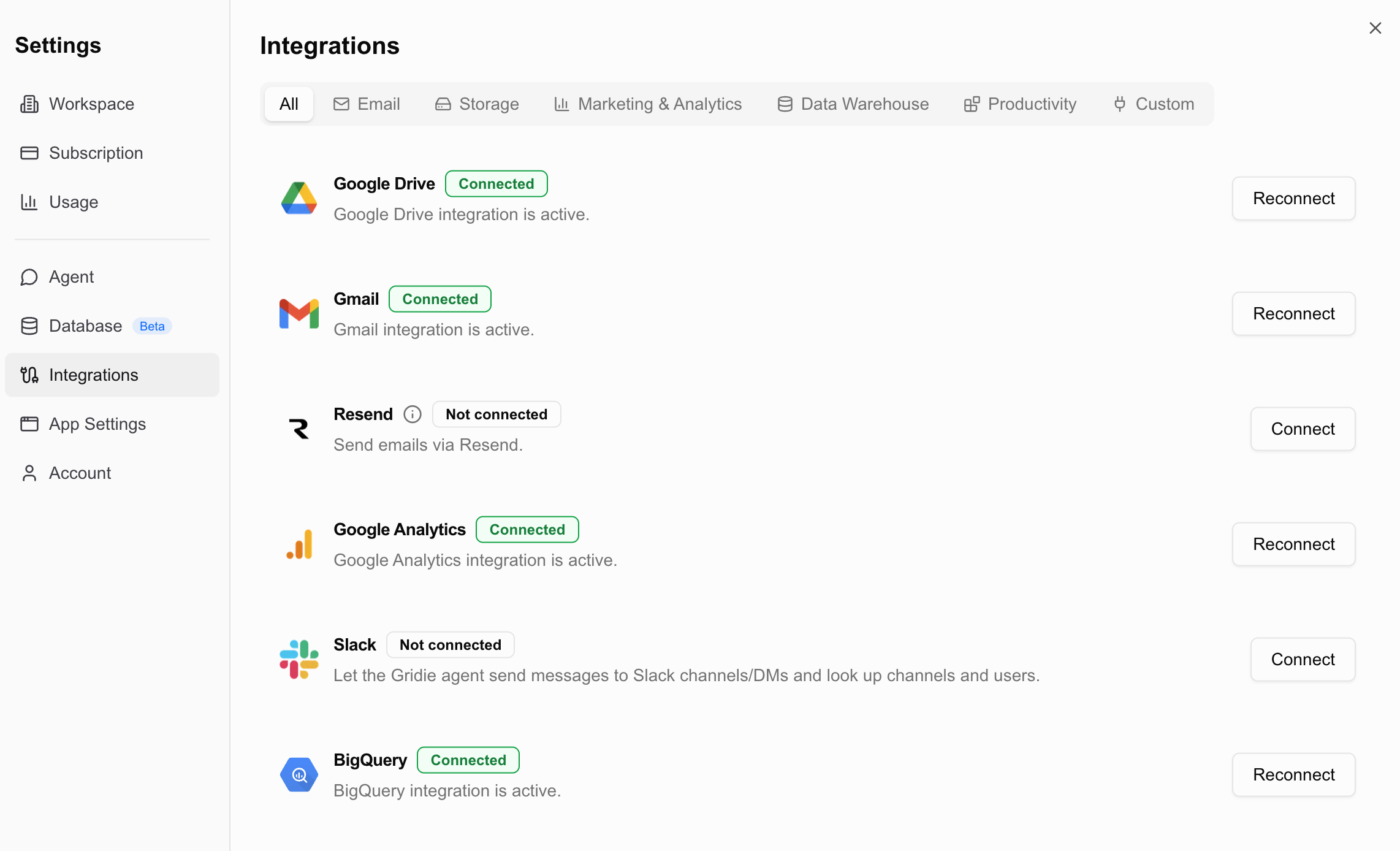
Connectors link services outside Gridie — like Stripe, BigQuery, or Hometax — to the agent so it can pull in data or send emails and messages. Once connected, you can work with external data in plain language, such as “Pull last month’s Stripe payments.”
What Is a Connector?
A connector turns an external service into a tool the agent can use. When a service is connected, the agent can query its data or perform actions through it. Once a service is connected, the agent decides which connectors a request needs and activates them on its own. Tools from services you haven’t connected are never used.
Two Authentication Methods
How you connect a service depends on its authentication method.
OAuth
Connect by approving access on the service’s login screen — no key to enter. Go to User menu → Settings → Integrations and click Connect on the service card.
- Services: Gmail, Google Drive, Google Analytics, BigQuery, Slack
Auth key
Register an API key, account info, or a certificate file issued by the service. The credential you register is stored encrypted and attached to the connectors that use it.
- API key: Stripe, Resend, Bolta, Spendit, ECOUNT, SAP OData, TossPayments, Toss Securities, Korea Investment & Securities
- Account info: Bank, Card, E-commerce
- Certificate: Hometax, Bank, Card, Social Insurance
Public data sources like DART, SEC EDGAR, Korean Law, G2B, Real Estate Transactions, KOSIS, and Bank of Korea ECOS can be used right away with no authentication.
Connectable Services
| Service | Description | Auth |
|---|---|---|
| Gmail | Send email from your Google account | OAuth |
| Resend | Send email from a custom domain | API key |
Files & Data
| Service | Description | Auth |
|---|---|---|
| Google Drive | Import files from Google Drive | OAuth |
| Google Analytics | GA4 traffic, user behavior, and reports | OAuth |
| BigQuery | Explore datasets/tables and run SQL | OAuth |
| Slack | Send messages, look up channels/users, search | OAuth |
Disclosures & Public Data
| Service | Description | Auth |
|---|---|---|
| DART | Korean listed-company financials and filings | None |
| SEC EDGAR | US filings and XBRL financial data | None |
| Korean Law | Korean statute search, article lookup, amendment analysis, rulings search | None |
| G2B | Government procurement bid notices, notice details, and award results | None |
| Real Estate Transactions | MOLIT apartment sale and lease transaction filings | None |
| KOSIS | Korean official statistics tables for population, prices, employment, and more | None |
| Bank of Korea ECOS | Base rate, exchange rate, and price time series from the Bank of Korea | None |
Korean Law Connector
With the Korean Law connector on, the agent grounds its answers in official data from the Korean Ministry of Government Legislation (국가법령정보센터).
- Statute search & article lookup: Finds relevant articles with intelligent search and retrieves official article text. It can also read the text as of a specific enforcement date and the addenda (application and transitional provisions), so you can check when an amendment actually takes effect.
- Enforcement & amendment analysis: Analyzes upcoming statutes, compares article text between two dates, traces change history, and follows the delegation links between statutes and their enforcement decrees and rules.
- Rulings & interpretations search: Searches Tax Tribunal decisions, government statutory interpretations, National Tax Service rulings, administrative appeals, administrative rules, court precedents, and Constitutional Court decisions, with full text where available.
- Citation verification: Verifies that statutes cited in an answer or report (e.g. “Article 19(2)1 of the Corporate Tax Act”) actually exist, against official data.
Cited articles appear as links to the official source, and expanding a tool line in chat shows the full text of the article, addendum, or ruling. The exact paragraphs and items the answer cites are highlighted in the original text, so you can check the basis at a glance.
Finance & Payments
| Service | Description | Auth |
|---|---|---|
| Stripe | Customers, payments, subscriptions, invoices, balance | API key |
| TossPayments | Payment transactions, settlements, and cash receipts | API key |
| Hometax | Tax invoice and cash-receipt sales/purchase data | Certificate |
| Bank | Corporate and personal account balances and transactions (KB, Shinhan, Hana, Woori, etc.) | Account info / Certificate |
| Card | Corporate and personal card approvals, purchases, billing statements, card list, and limit | Account info / Certificate |
| Stocks | Stock search, quotes, daily candles, fundamentals, and holdings via Toss Securities or Korea Investment & Securities | API key |
| Bolta | Issue and look up electronic tax invoices | API key |
Separately from retrieving sales/purchase records via the HomeTax connector, you can also generate withholding tax and VAT filing files (.enc) directly → Generating Tax Filing Files
ERP & Expenses
| Service | Description | Auth |
|---|---|---|
| ECOUNT ERP | Sales, purchasing, inventory, production, accounting | API key |
| SAP OData | S/4HANA sales, purchasing, production, inventory, accounting | API key |
| Spendit | Expense reports and spending data | API key |
| Social Insurance | Subscriber roster lookup | Certificate |
| E-commerce | PG sales data (Baemin, Coupang, Naver, 11st, etc.) | Account info |
Customer Support
| Service | Description | Auth |
|---|---|---|
| Channel Talk | Chats, chat messages, customers, managers, and chat tags | API key |
Supported connectors are added continuously, and some may not appear depending on region (domestic/global). Check the live list in the app.
Registering an Auth Key
Auth-key services require a credential before you can use them. What you enter depends on the service, and a registration form tailored to each service is provided.
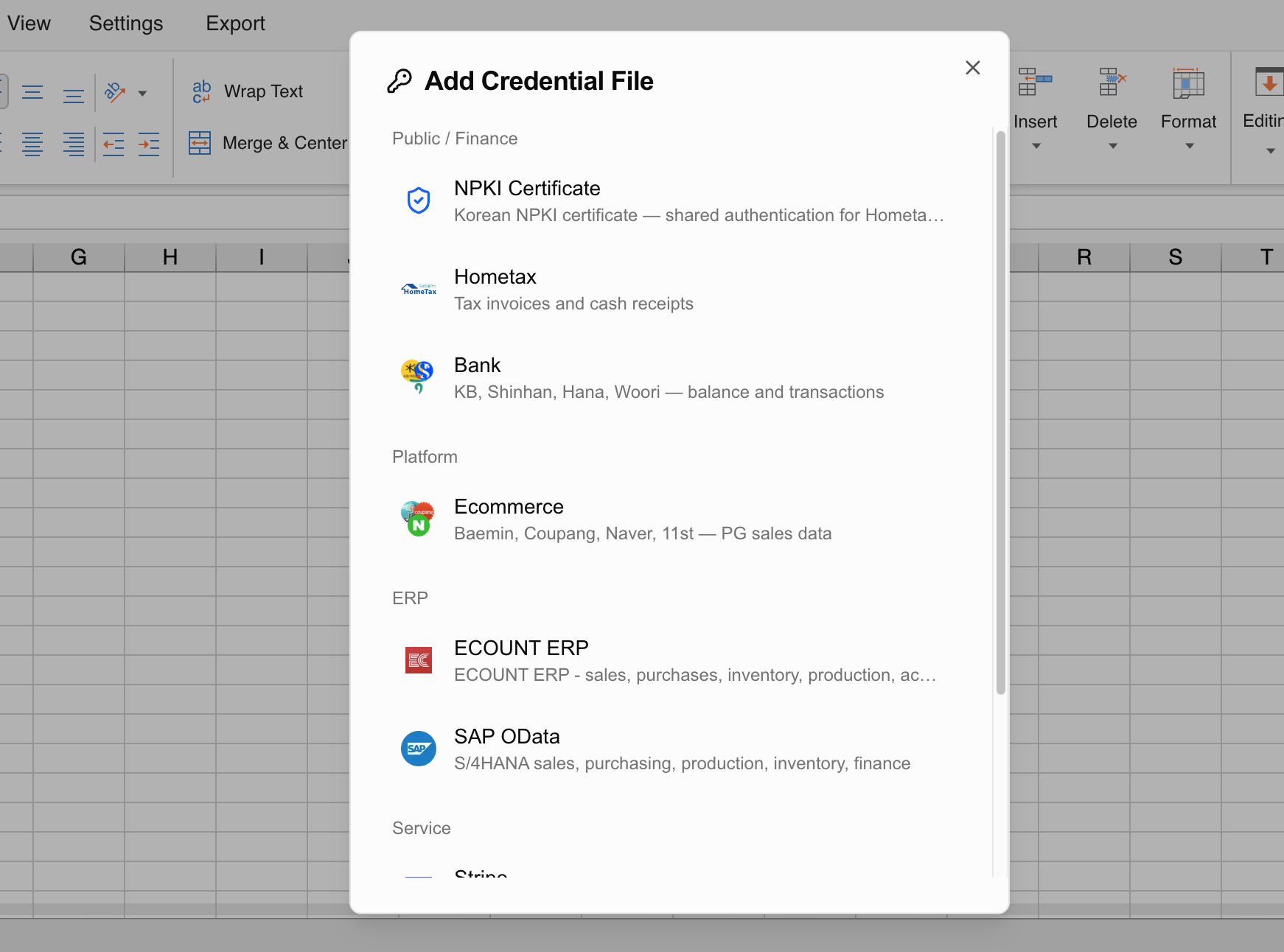
Register with an API key
Open the registration screen
Open the credential registration screen for the service you want to connect.
Enter the key
Paste the API key or auth info issued by the service. (e.g., Stripe → Dashboard → Developers → API keys → secret key sk_live_...)
Save
Saving completes the connection.
Register with a certificate (NPKI)
For services that need a certificate, such as Hometax, Bank, Card, and Social Insurance, you register the certificate first and then attach it to each integration.
Register the certificate
Go to Settings → Integrations → Certificates and select Register certificate. Choose the entire certificate folder containing a .der (signing certificate) and .key (private key) pair, or a .pfx file, then enter the certificate password. The business registration number is optional, but Hometax queries need it. You can give it a certificate name (for example, Corporate certificate) so it’s easy to identify later.
Attach it to an integration
Open an integration that connects with a certificate, such as Hometax, Bank, or Card, and pick the certificate you registered. The certificate screen shows both linked integrations and integrations you can attach.
One certificate can be used by multiple integrations. For example, registering a certificate once lets you attach it to Hometax, Bank, Card, and Social Insurance.
Depending on the card company, personal cards may not support ID login, or may require an extra SMS verification when you sign in from a new device. Connecting with a certificate avoids that extra step.
Checking Integration Status in Chat
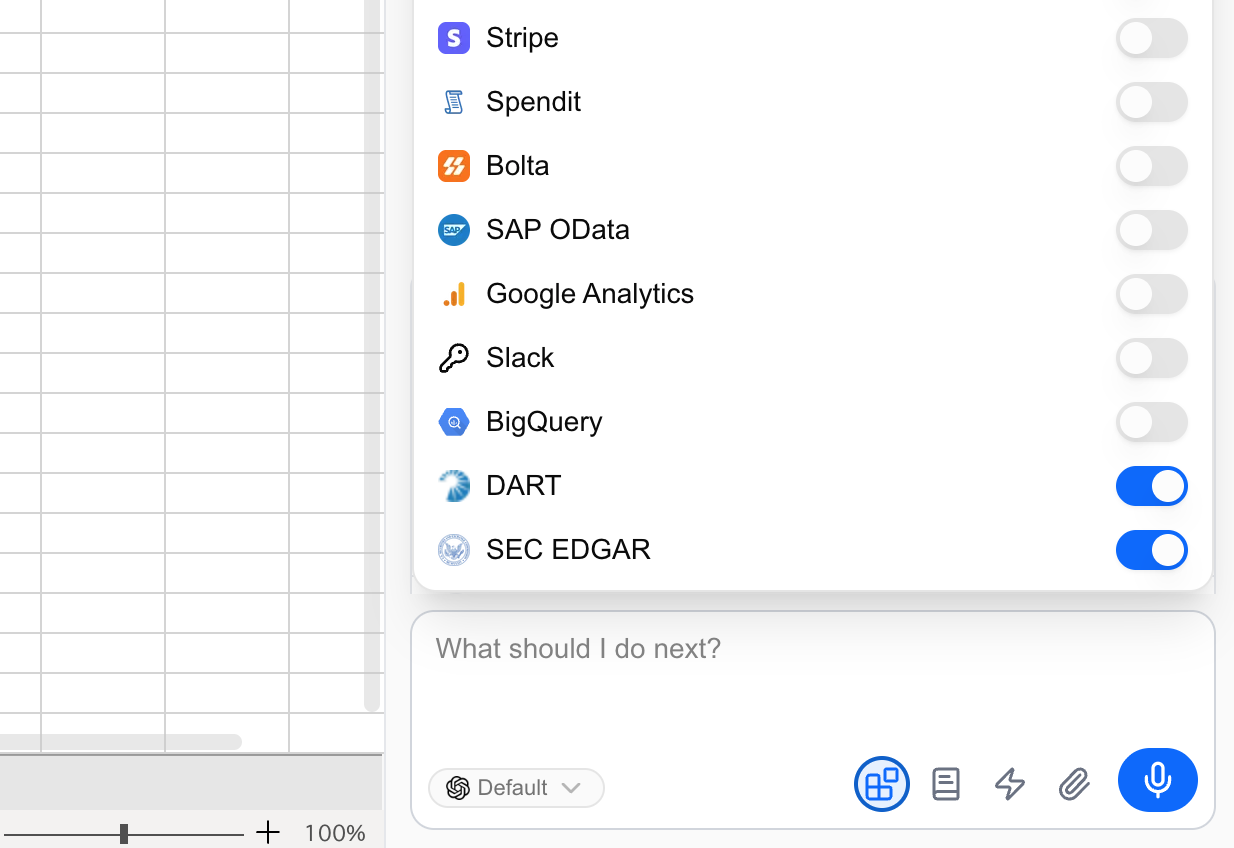
You don’t need to switch connectors on and off. Just describe what you want to do, and the agent activates whatever connectors the request needs.
Click the Integrations button below the chat input to see what’s available right now. Each service shows a Connected or Auth expired status, and clicking a row opens that integration’s settings. To connect something that isn’t listed, use Add integration.
Connectors that need no authentication, such as DART, Korean Law, G2B, Real Estate Transactions, KOSIS, and Bank of Korea ECOS, are grouped into a single Public data row.
Security & Disconnecting
- Every registered credential is stored encrypted, and certificates are encrypted with the password you provide.
- A connection belongs to the person who created it. Connections that handle personal financial data, such as Bank and Card, are not shared with other members automatically.
- To use one with your team, add members under Share connection on that connection. Anyone you share with can query data and run actions through your account.
- Disconnecting or deleting a credential doesn’t affect data you’ve already imported, but you won’t be able to pull new data from that service afterward.
API keys and certificates are sensitive. Register them only for the connectors you actually need, and delete credentials you no longer use.
Custom Connectors (MCP)
For services not on the list, connect an external MCP server yourself and use it as a custom connector. See the custom connectors (MCP) guide for details.
 Custom Connectors (MCP)