 Gridie MCP
Gridie MCP
Connect Gridie as an MCP server and you can work with its workbooks, tables, pages, and workflows from AI clients like Claude, ChatGPT, and Cursor. Read and edit your Gridie data without leaving the tool you already use.
Custom connectors (MCP) go the other way. That page is about attaching external MCP servers to the Gridie agent; this one is about attaching Gridie to another client.
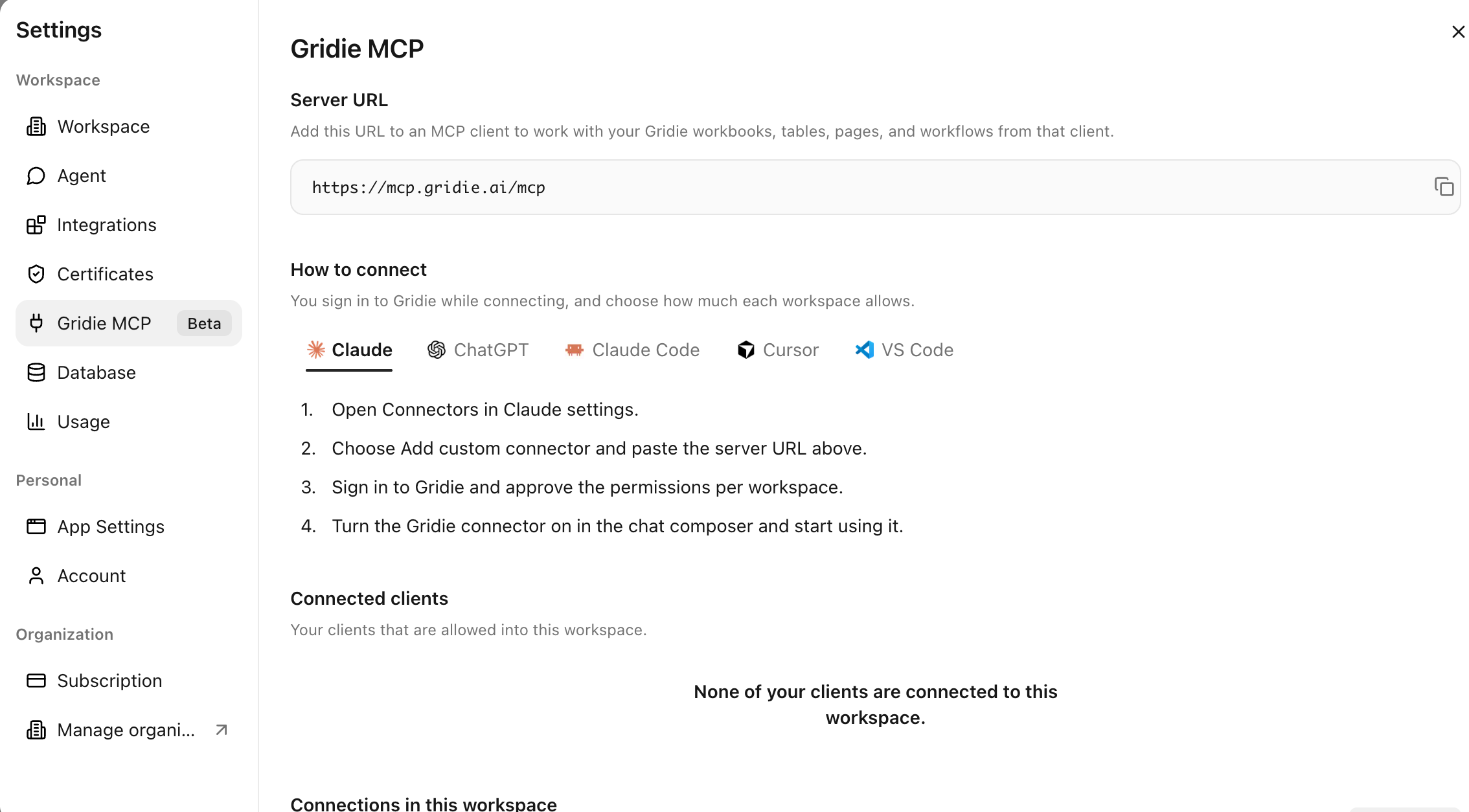
Server address
You’ll find the server address under Settings → Gridie MCP.
https://mcp.gridie.ai/mcpRegister this address in your MCP client.
Connecting from each client
When you connect, you sign in to Gridie and choose how much access to grant for each workspace.
Claude
Open connectors
Open connectors in Claude settings.
Paste the server address
Select Add custom connector and paste the server address above.
Sign in and approve
Sign in with your Gridie account and approve access per workspace.
Start using it
Turn on the Gridie connector in the chat composer and use it.
ChatGPT
Turn on developer mode
In ChatGPT settings → Connectors, turn on developer mode.
Add the connector
Add a connector and paste the server address above. Choose OAuth as the authentication method.
Sign in and approve
Sign in with your Gridie account and approve access per workspace.
Start using it
Select the Gridie connector in a conversation and use it.
Claude Code
Register the server from your terminal, then run /mcp in Claude Code to sign in and approve access per workspace.
Cursor
Open MCP & Integrations in Cursor settings. Use Add custom MCP to open mcp.json, add the Gridie server, then sign in from the gridie entry that appears in the list.
VS Code
Create a .vscode/mcp.json file in your working folder, add the Gridie server, and save. Turn on gridie in the Copilot chat tool list and sign in.
The settings screen has a connection guide per client with configuration you can paste straight into each client.
Access levels
When you connect, you pick read or write for each workspace. Workspaces you don’t grant access to stay invisible to the client.
- Read: fetch the contents of workbooks, tables, and pages.
- Write: create and edit content.
Managing connections
The Settings → Gridie MCP screen shows two lists.
- Connected clients: clients you have granted access to this workspace.
- Connections in this workspace: clients that members have granted access to this workspace. Visible to admins.
Revoking a connection cuts that client’s access to the workspace. To use it again, connect from the client anew. Only the person who created a connection can revoke it.
Gridie MCP is a beta feature.
Related docs
- Custom Connectors (MCP) — connect external MCP servers to Gridie
- Connectors & Credentials — external service integrations