Workspace
All work happens inside a workspace. Whether working alone or with a team, the workspace is the fundamental unit.
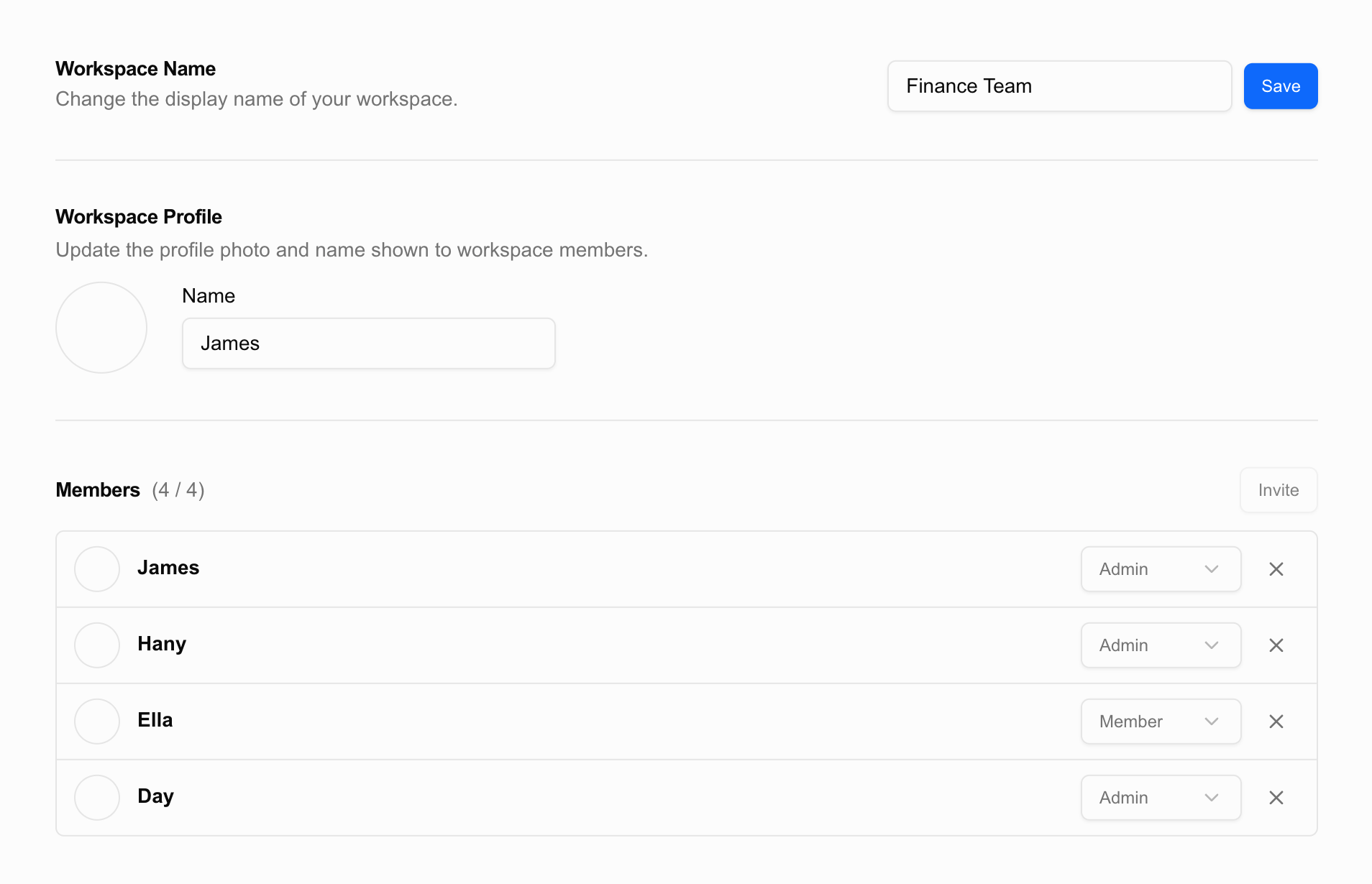
Workspace Structure
A workspace has two tabs:
- Personal Space: Stores folders and workbooks only you can see. Not visible to other workspace members.
- Team Space: A shared space for workspace members. Access permissions can be set separately per folder.
A workspace is automatically created when you sign up, and you start with a personal workspace for solo use. Invite teammates to expand it into a collaboration space.
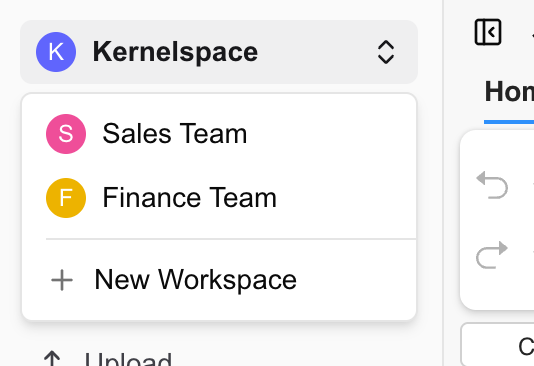
Switching Between Workspaces
Click the workspace name at the top of the sidebar to open the switcher menu. If you’ve been invited to multiple workspaces, you can navigate between them quickly from this menu.
Inviting Team Members
Admin permissions are required to invite members to a workspace.
- Go to Settings in the sidebar or Workspace Settings from the user menu.
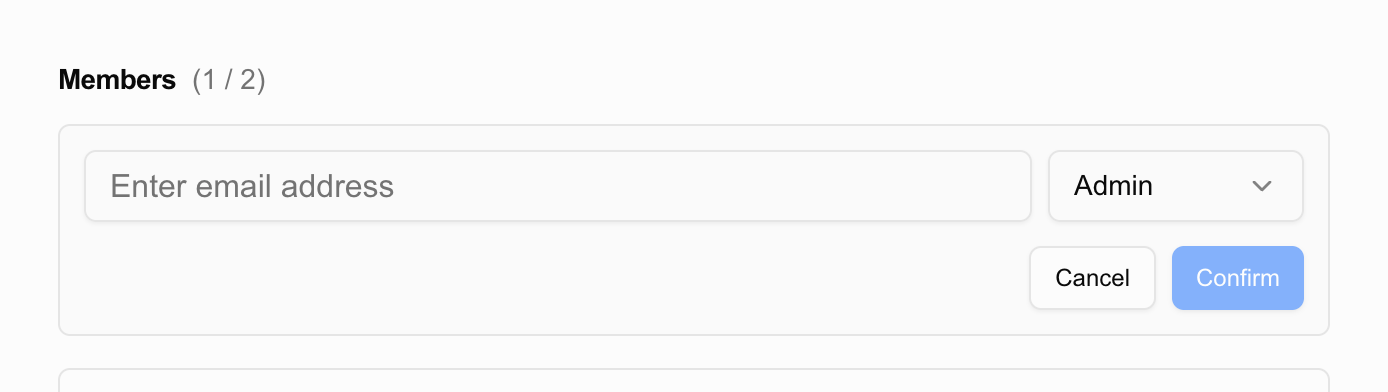
- On the Members tab, enter the email address of the person you want to invite.
- An invitation email is sent, and they’re added as a member when they accept.
Invitation links are valid for 7 days after sending. If the period expires, you’ll need to send a new invitation.
Member Roles
| Role | Can do |
|---|---|
| Admin | Invite and remove members, change workspace settings, full access to team space |
| Member | Access folders and workbooks in team space (subject to folder permission settings) |
Team Space Folder Permissions
Even as a team space member, you don’t automatically have access to all folders. Permissions can be set individually per folder, and you can limit visibility to only those who need it.
→ Learn more about permissions
Team space and member invitation features are available on Team and Enterprise plans. The number of members you can invite varies by plan.