Version History
Gridie automatically saves a version every time the agent modifies a workbook. If the agent made a mistake or you want to revert to a previous state, you can restore the workbook to any point from the chat history.
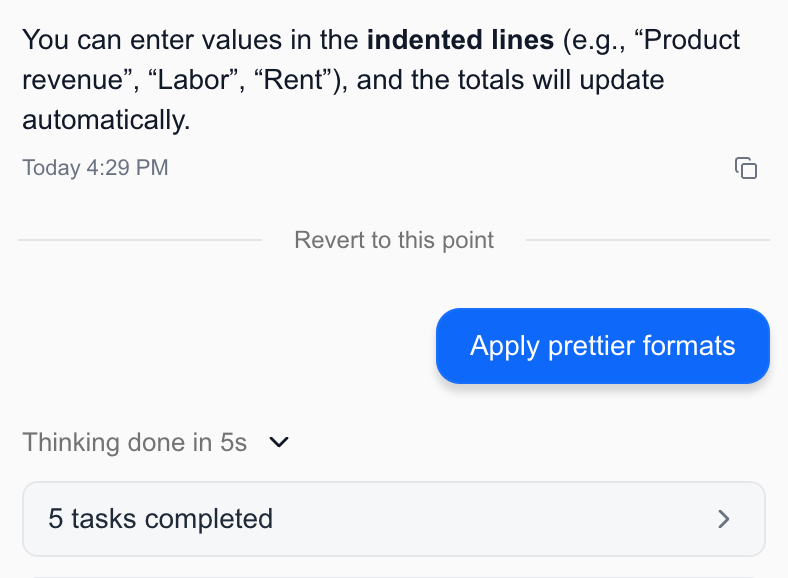
When Versions Are Saved
A version snapshot is automatically saved every time the agent performs a task that changes workbook data. No manual save button needed.
- Entering or modifying cell values
- Inserting or deleting rows/columns
- Changing sheet structure
- Data changes from workflow execution
Up to 30 versions are kept per workbook. When the limit is exceeded, the oldest version is automatically deleted.
Reverting to a Previous Version
Find the Point to Revert to in Chat History
In the agent chat panel, find the message at the point you want to revert to. A “Restore to this point” button appears between messages.
Click the Restore Button
Click the button at the desired point to open the restore options dialog.

Choose the Restore Scope
Select one of two options:
| Option | Description |
|---|---|
| Restore chat history only | Keep the workbook data as-is, delete only chat messages after the selected point |
| Full restore | Restore both workbook data and chat history to the selected point |
Selecting Full restore cancels all work the agent performed after that point. It’s recommended to download the current state before restoring.
Preserving the Current State Before Restoring
When you initiate a restore, Gridie automatically saves the current state as a separate version before proceeding. If you change your mind after restoring, you can use the restore button again to recover the most recent (pre-restore) state.
Version history is only created for work performed by the agent. Manual edits you make directly to the spreadsheet are not saved as separate versions.