Draft Emails
The agent automatically generates email drafts based on spreadsheet data. Using data from tables like customer lists, order lists, or report recipient lists, you can create dozens of email drafts at once.
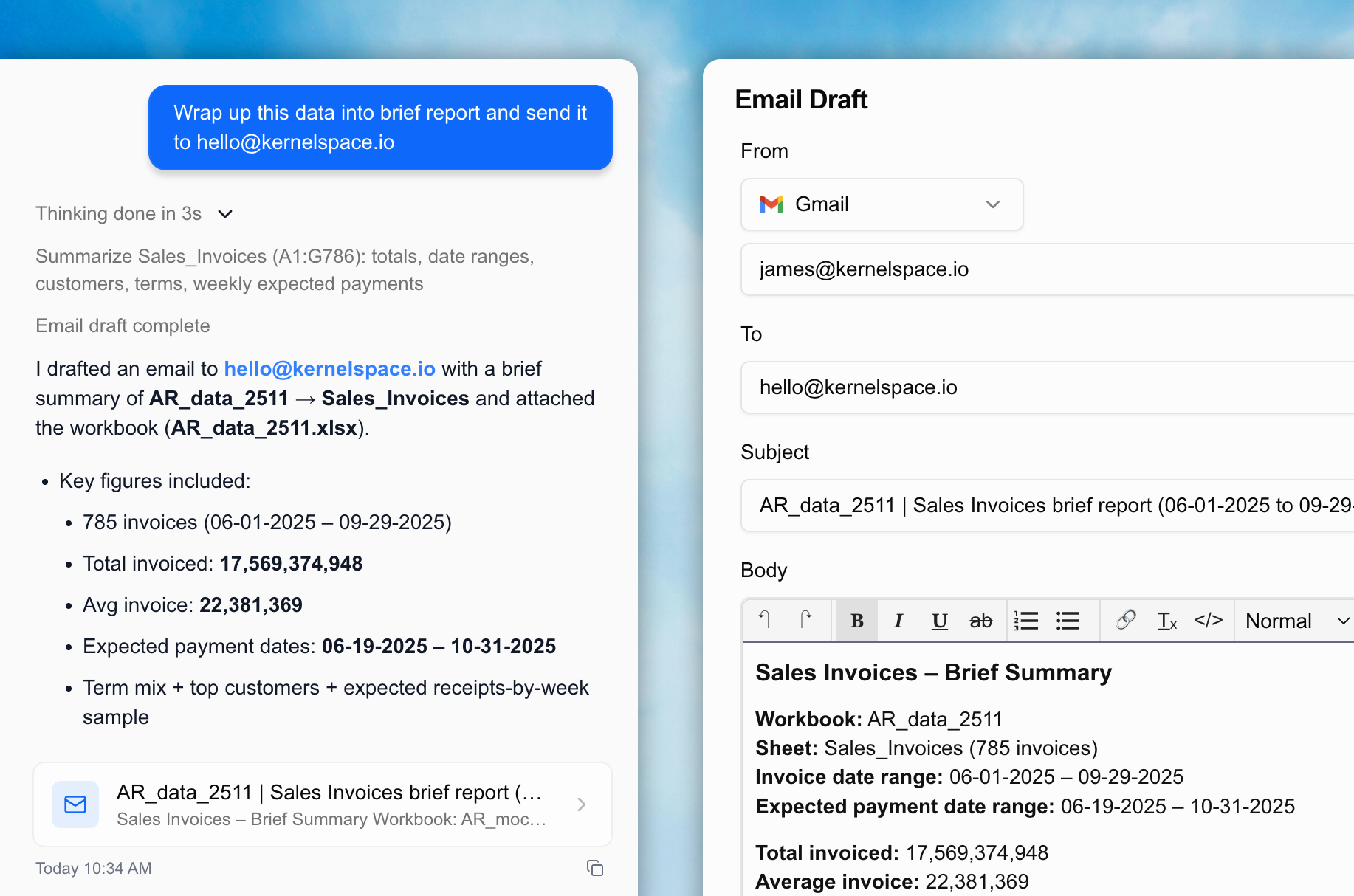
Requesting Email Drafts
Ask the agent in natural language from the chat window. You need a sheet in the workbook with recipient information (name, email address).
"Write a delivery completion notification email to the customer emails in column B.
Use column A for names and column C for order numbers to personalize each one."
"Create email drafts to send a quarterly report attachment
to the contacts at partner companies in Sheet1."The agent generates a draft for each recipient and displays them as email cards in the chat window.
Reviewing and Editing Email Drafts
Single Email

Click an email card to open the editing screen.
- From: Select the connected email service (Gmail, Resend, etc.)
- To/CC/BCC: Review and edit recipient email addresses
- Subject: Edit the email subject
- Body: Edit the HTML body directly
- Attachments: Attach the workbook file or other files
After editing, click Save, then send with the Send button once you’ve confirmed the content.
Batch Emails
If you’ve created emails with different content for multiple recipients, they appear as a batch card.

- The card shows the number of emails generated and a recipient preview.
- Click the card to open the carousel editing view where you can review and edit each email one by one.
- Navigate between emails with previous/next buttons, and edits to each email are saved individually.
You can generate up to 100 email drafts at once.
Email Management Screen
You can view and search all generated email drafts in the Email Management screen. Click the email icon at the top of the chat panel, or ask the agent “show me the email list.”

- Search by email subject or recipient
- Displays 5 per page
- Send history (success/failure) is also visible
Email Sending Setup
To actually send emails, you need an email service integration. Currently supported services:
- Gmail: Connect via Google account OAuth
- Resend: Connect by entering your API key
You can write and edit drafts without an email service integration. Sending is only possible after integration.
Automate Emails with Workflows
If you need to send the same type of email regularly, save it as a workflow.
"Create a workflow that organizes this week's to-do list for team members
every Monday and creates email drafts."