Agent (Advanced)
Here’s what the agent can do beyond basic editing. You may already know some of these, but discovering new ones will significantly expand how you can use it.
Understands Complex Sheets on Its Own
When working on sheets with large amounts of data or complex structures, the agent carefully examines the sheet before starting. It identifies header positions, column meanings, and data ranges before proceeding, which increases the likelihood of getting the results you want without having to explain everything.
This is especially useful when referencing data from other sheets or requesting tasks that span multiple sheets.
"Analyze the data in Sheet2 and update the summary table in Sheet1"
"Understand the structure of the raw data sheet and create an aggregation sheet"
Changes Table Styles All at Once
After organizing data, the agent can also make the table look polished. Instead of specifying color codes or options one by one, just describe the style that fits the purpose.
| Style | Characteristics | Best for |
|---|---|---|
| clean | Blue header, striped background | General business reports |
| compact | Small font, high-density layout | Viewing lots of data at a glance |
| finance | Dark navy header, automatic comma formatting for numbers | Financial statements, settlement documents |
| minimal | No background color, thin divider lines only | Clean presentation materials |
"Apply the finance style to the range A1:F50"
"Change this table to minimal style and freeze the header row"
"Apply the clean style and auto-fit column widths"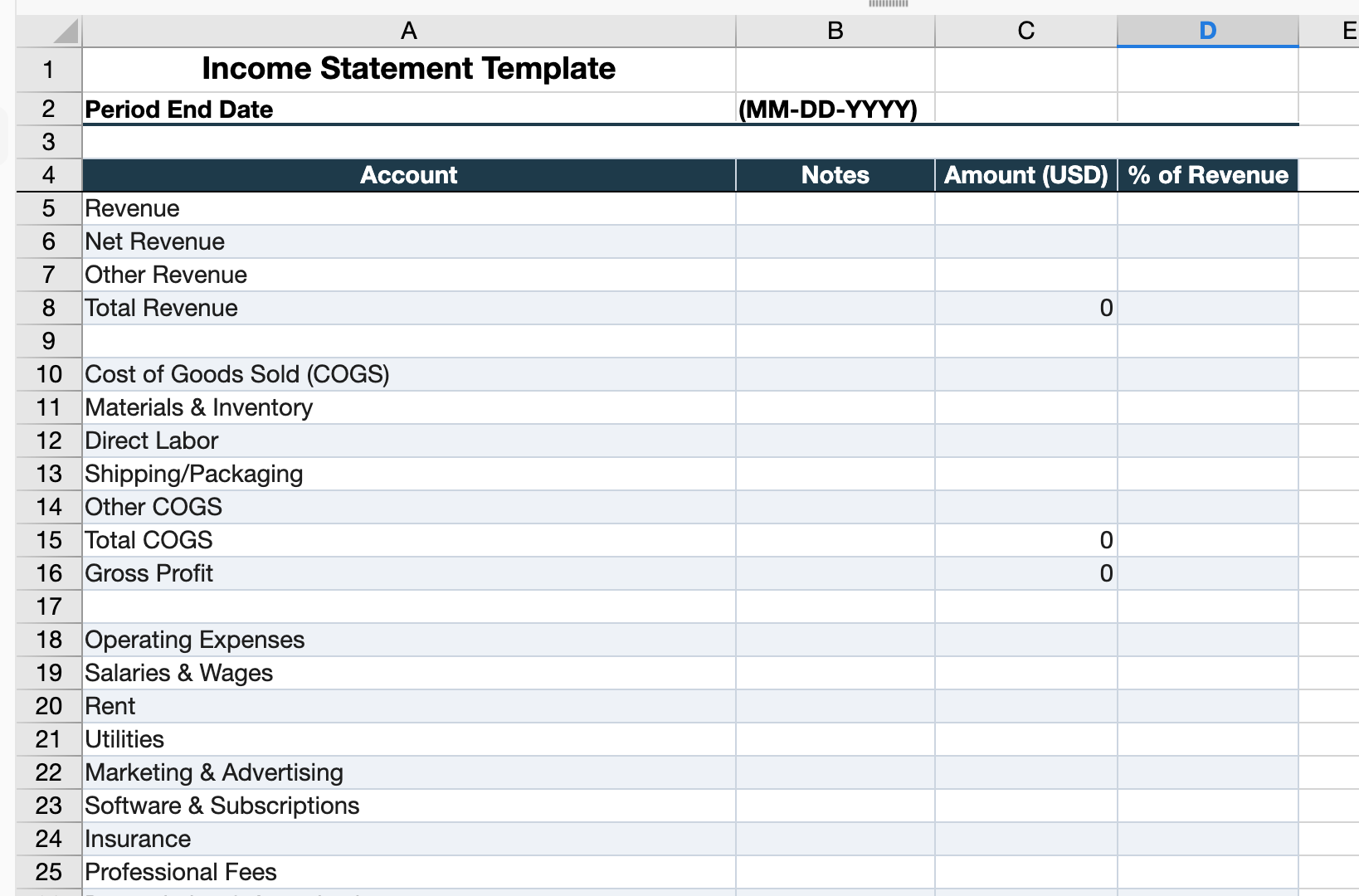
Reads Data from PDFs and Images
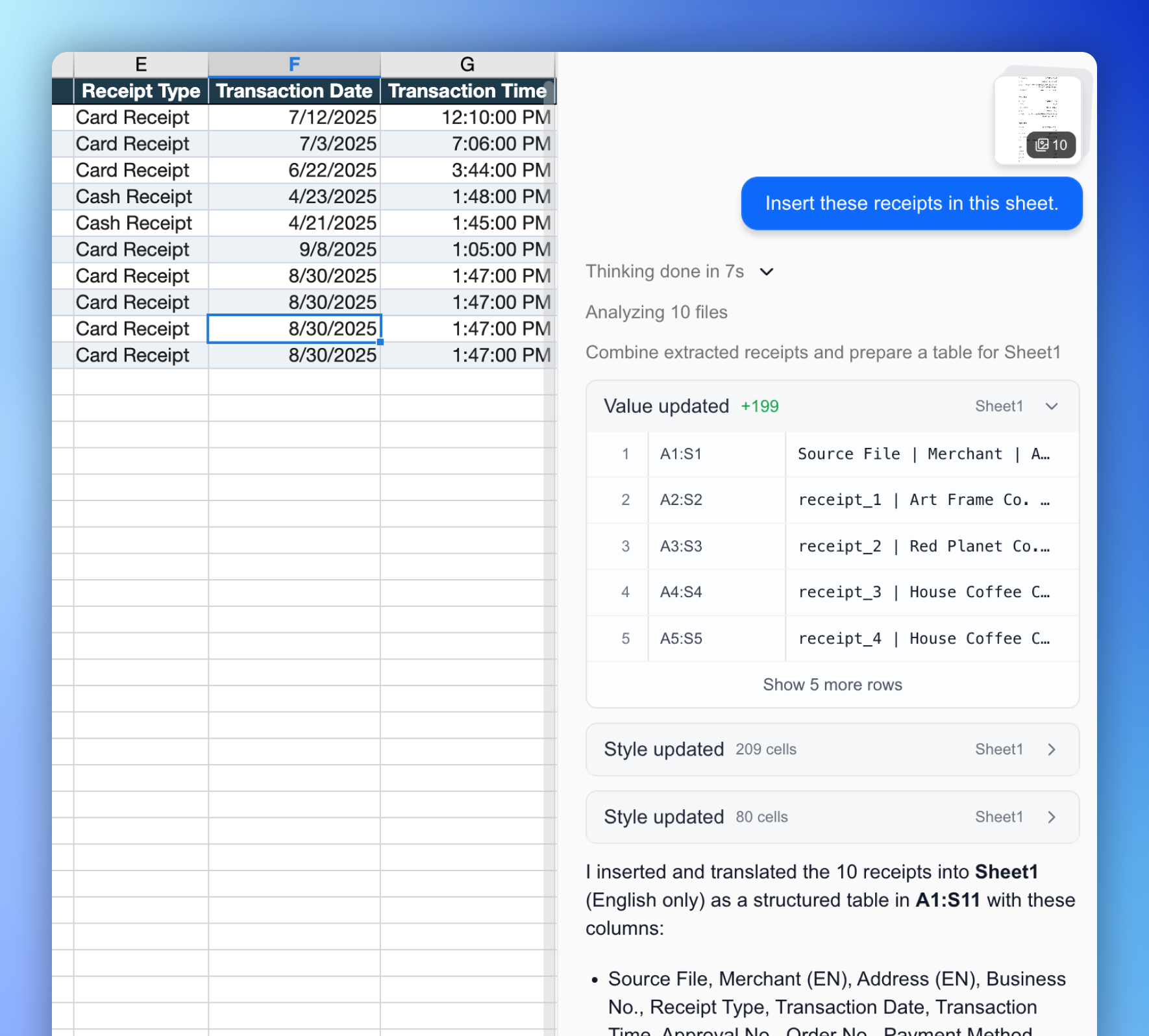
Attach scanned receipts, PDF invoices, or photos of tables, and the agent will read the contents and enter them into the spreadsheet.
"Read the date, items, and amounts from the attached receipt and enter them in the table"
"Extract only the numerical data from this PDF report and organize it"
"Copy the table in the photo into the sheet as-is"
Supported formats: Images (JPG, PNG, WebP, etc.), PDF
Searches the Web for Information
When you need up-to-date information or data not in your sheet, the agent can search the web directly.
"Find today's exchange rate (USD/EUR) and enter it in B1"
"Search for Apple's latest quarterly earnings and summarize them"
"Create a comparison table of current subscription plans for three competitors"
For structured data like stock prices, financial statements, or payment data, connectors can retrieve it more accurately. → Set up integrations
Fetches External Service Data Directly
The agent can directly query data from connected services like Stripe, DART, and Google Analytics.
| Service | Data available |
|---|---|
| Stripe | Payment history, subscription info, customer list |
| Google Analytics | Visitor statistics, event data |
| DART | Financial statements and disclosures for listed Korean companies |
| BigQuery | Database query results |
| SEC Edgar | SEC filings for US-listed companies |
| Stock prices | Real-time and historical prices |
"Get this month's Stripe payment count and total revenue"
"Find Samsung Electronics' operating profit for the past 3 years from DART"
"Show last week's daily visitor count for our site"
Creates Charts and Pivot Tables
You can request data visualization verbally. Specify the chart type, range, and title all at once, or modify an existing chart.
"Create a line chart showing monthly trends using the sales data in column B"
"Create a bar chart comparing team performance and title it 'Q3 Team Results'"
"Create a pivot table showing this data by department and month"
Automatically Colors Cells Based on Conditions
You can also set up conditional formatting that automatically highlights cells meeting specific conditions. Once set, it applies automatically whenever the data changes.
"Highlight cells where sales are below the target in red"
"Emphasize the top 10% values in green"
"Color entire rows where the deadline is before today in gray"
Continues Work Across the Conversation
The agent remembers previous results within the conversation flow. You can use intermediate results directly in subsequent requests.
"Calculate total sales for 2023"
→ "It's $1,234,000."

"Use that value to calculate the achievement rate against the target"
→ Agent uses the just-calculated value in the next step
If you have a workflow you use repeatedly, save it as a workflow. Next time, it’s done with a single run. → Create a workflow