Permissions
You can set access permissions at the folder level. Configure each team member to access only the folders they need, and protect important data as read-only.
Default Permissions
The default permissions for a folder depend on its location.
- Personal space folders: Only you can access them. Permissions cannot be set separately.
- Team space folders: All workspace members can access them by default.
Permission Levels
Team space folders can grant one of the following two permission levels per member:
| Permission | Can do |
|---|---|
| Write | Open, edit, create, and delete workbooks; delete folders |
| Read | Open and download workbooks only (cannot edit or delete) |
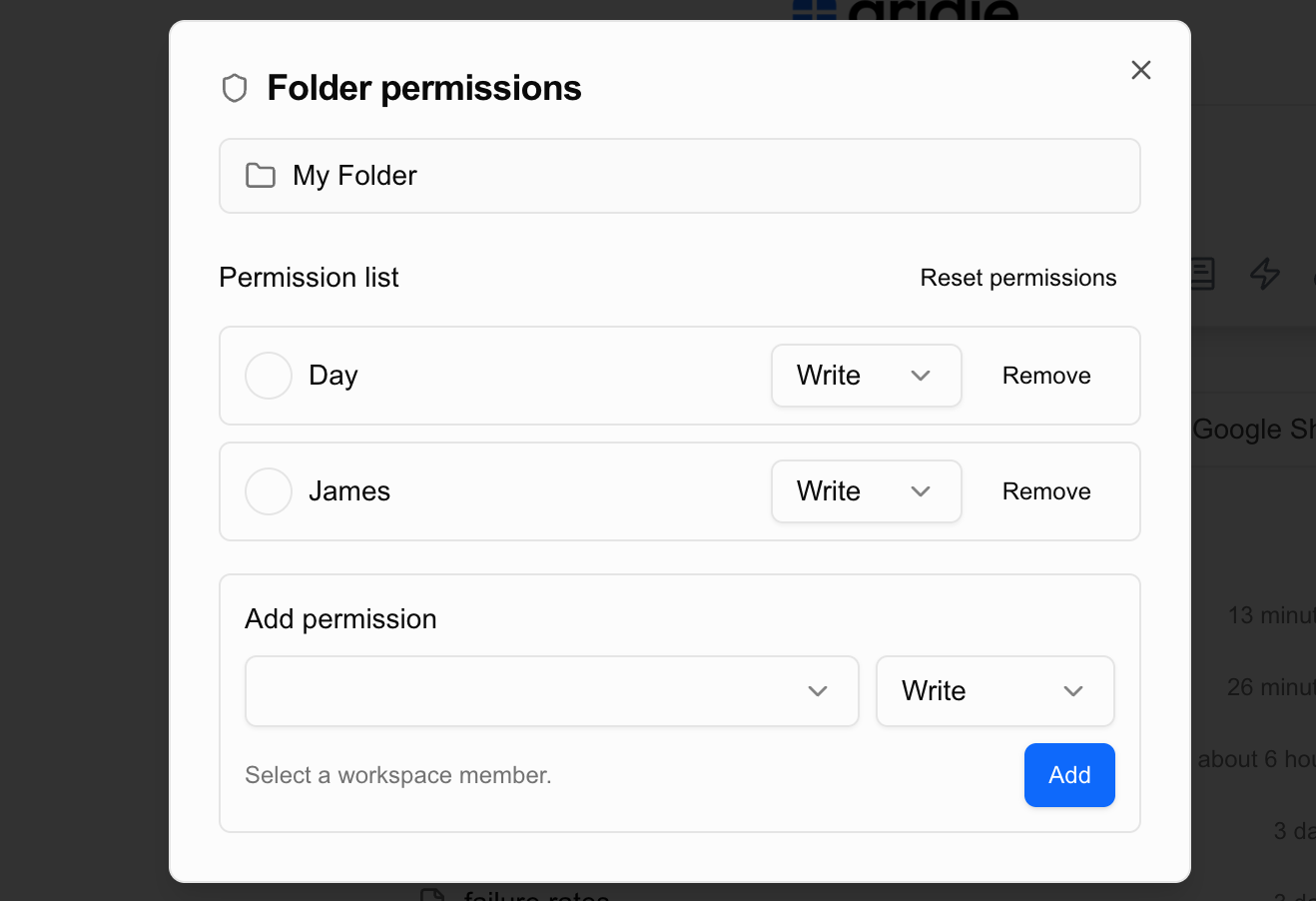
Setting Folder Permissions
- Right-click the folder you want to set permissions for, or click the
...menu next to the folder. - Select Permission Settings.
- Select a member and specify the permission level (Write / Read).
- Click Add to apply immediately.
Permission Inheritance for Subfolders
If a folder has subfolders, the subfolders automatically inherit the parent folder’s permissions. Permissions cannot be changed separately on an inherited folder — you must modify them at the parent folder level.
Deleting Folders
Only members with Write permission can delete folders.
Deleting a folder also deletes all workbooks inside it. Make sure to download any necessary files or move them to another folder before deleting.
Note on Simultaneous Editing
Gridie does not currently support simultaneous editing. If multiple people access the same workbook, only one person can edit at a time.
Real-time simultaneous editing is planned for a future update.