Google Drive Integration
You can import Google Sheets or Excel files from Google Drive into Gridie. Move files you’ve been working on in Google Sheets to Gridie and use them with the AI agent.
Importing Files from Google Drive
Connect Google Drive
Click the Google Sheets button on the Home screen. If this is your first time, a permission request screen appears for Google account connection. Click Allow to authorize access to Google Drive.
Select a File to Import
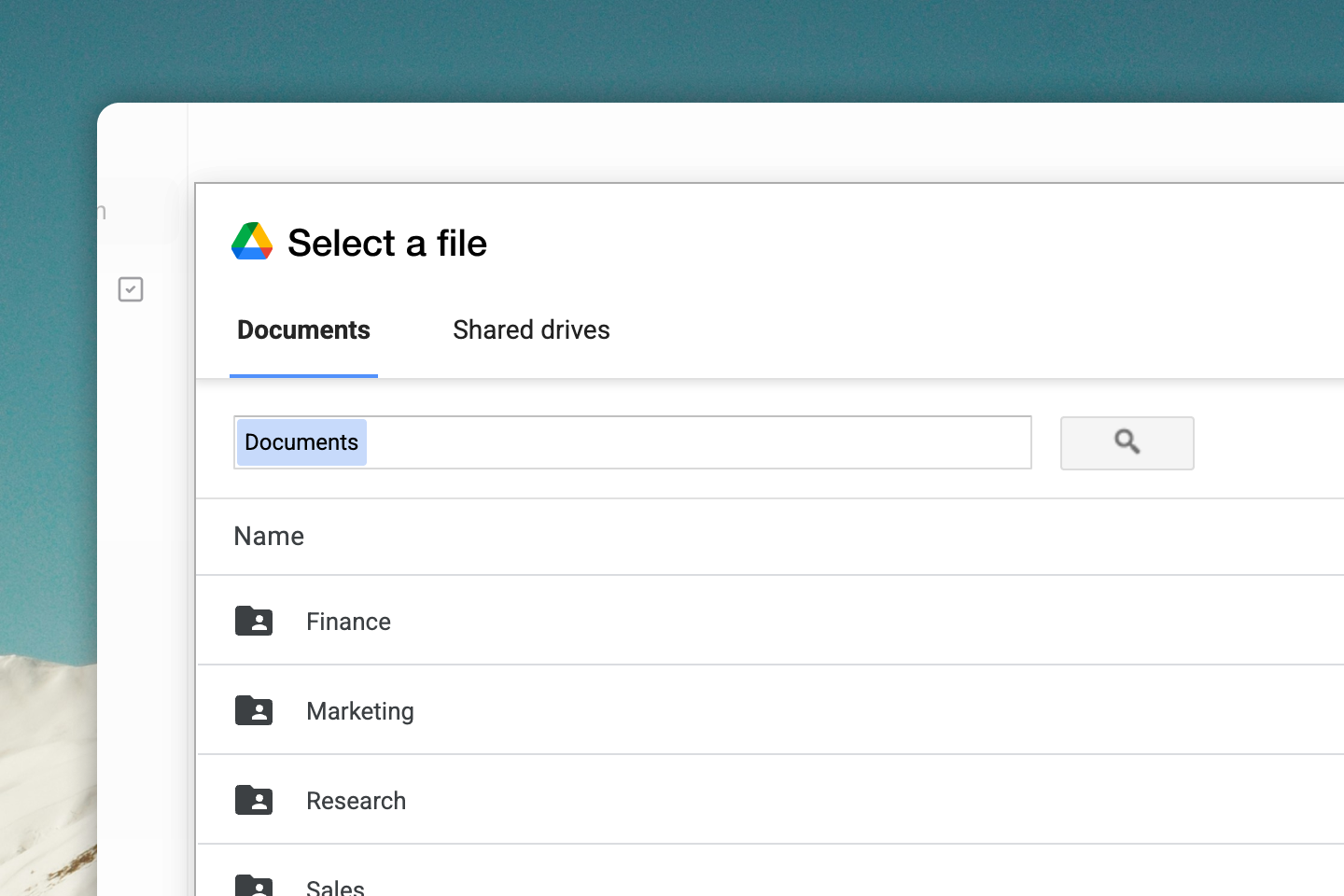
When the Google Drive file picker opens, select the file you want to import. Both Google Sheets files and Excel (.xlsx) files can be selected.
Import Complete
Once you select the file, it’s automatically converted to Gridie workbook format and added to the current folder. A loading indicator appears briefly during conversion.
Supported File Formats
| Format | Description |
|---|---|
| Google Sheets | Google Spreadsheet files (.gsheet) |
| Excel | Microsoft Excel files (.xlsx) — when stored in Google Drive |
Imported files are converted to Gridie workbooks. The original Google Sheets file is kept as-is and does not automatically sync with Gridie.
What’s Preserved on Import
The following items are preserved when importing from Google Sheets to Gridie:
- Cell data and text
- Number and date formatting
- Formulas (Excel-compatible formulas)
- Basic cell formatting (font, color, alignment)
- Sheet tab structure
Google Sheets-specific features (e.g., Google functions like GOOGLEFINANCE, IMPORTRANGE) may not be supported in Gridie. After importing, check those cells and ask the agent to fix them if needed.
Frequently Asked Questions
Q. If I edit the imported file, will the changes reflect in the original Google Sheets? No. Edits made in Gridie are not reflected in the Google Sheets original. Gridie is import-only — after importing, the file is managed as an independent workbook.
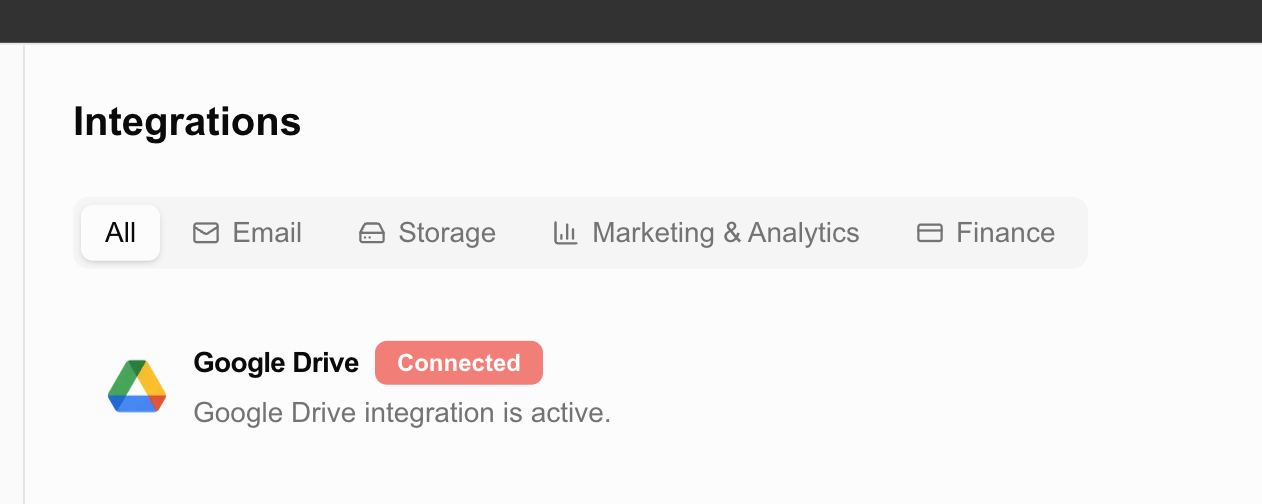
Q. Can I disconnect Google Drive? Yes. You can disconnect Google Drive from Settings > Integrations. This does not affect workbooks you’ve already imported.